
Drag-and-drop (DnD) editing seems like a basic capability of any modern JavaScript Gantt component. But real project requirements for Gantt chart drag-and-drop often go far beyond moving a taskbar along the timeline. You may want to be able to drag a group of tasks with their dependencies or a project task with subtasks, rearrange the schedule hierarchy, and perform a variety of other scheduling actions. That is why DHTMLX Gantt complements the default drag-and-drop interaction with numerous configuration and customization options to fit specific workflows. Well-designed DnD behavior makes routine interactions feel more intuitive and predictable, improving the overall user experience.
In this post, we’ll explore different drag-and-drop editing options available in DHTMLX Gantt and demonstrate a few examples with customization scenarios.
Dragging Taskbars Along the Timeline
This is essentially what is meant by drag-and-drop editing in timeline-based tools like a Gantt chart. In DHTMLX Gantt, this behavior is enabled by default, allowing end-users to move a taskbar to a new position on the timeline, thereby changing its start and end dates while keeping its duration. This simple action replaces the need to open the task editor and introduce changes manually. The built-in autoscrolling makes it more convenient to drag tasks to distant positions in the timeline. However, for real-life applications, this is rarely enough.
When integrating Gantt functionality into modern apps, it is often required to specify additional rules on how tasks can be moved with drag-and-drop. The extensive DHTMLX Gantt API comes with special events (onBeforeTaskDrag, onTaskDrag, onAfterTaskDrag) for adjusting different stages of taskbar dragging to specific project requirements.
Using these events, it is possible to diversify the default drag behavior in the following ways:
- prevent certain tasks from being moved at all,
- restrict task movement to a certain date range,
- enable dragging of task hierarchies (parent task+child tasks),
- allow dragging interdependent tasks, keeping relationships between them intact.
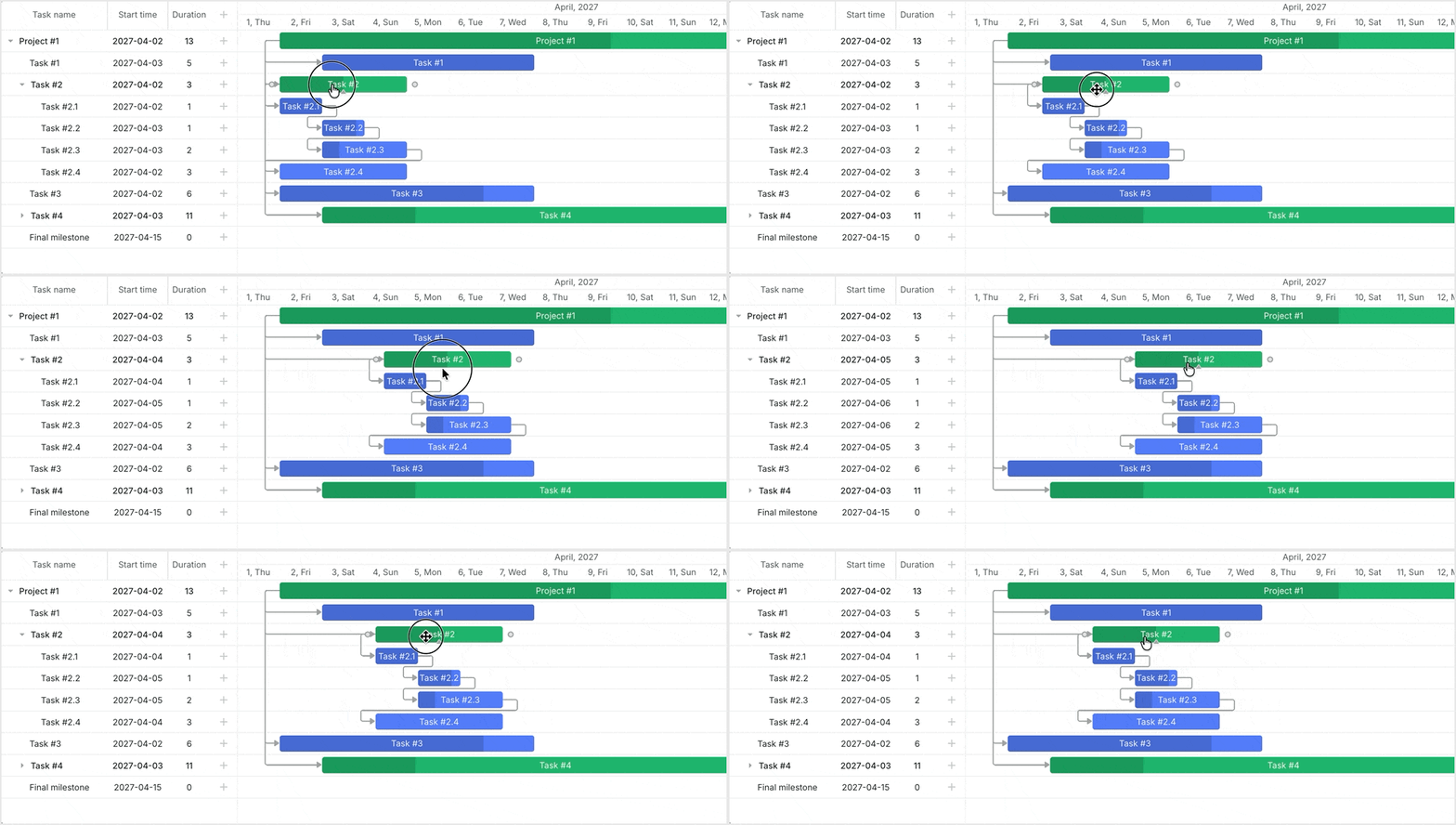
The documentation explains the technical details of configuring drag-and-drop editing for tasks within the timeline. Also, take a look at the guide on different approaches available for implementing drag-and-drop behavior for dependent tasks.
These materials will help you to master the main ways to control task dragging in our component, but real scenarios call for more than just changing where tasks can be moved.
Сustom Drag-and-Drop Behavior in JavaScript Gantt
The API events mentioned in the previous section allow configuring the existing dragging behavior, but you can go further and customize how the interaction looks and works for end-users. For instance, DHTMLX Gantt enables you to enrich the DnD experience with the following customizations:
This feature helps keep the original task position visible while the actual taskbar is moved to its new place on the timeline. Thus, users get a visual comparison between the initial and proposed schedule for a given task.
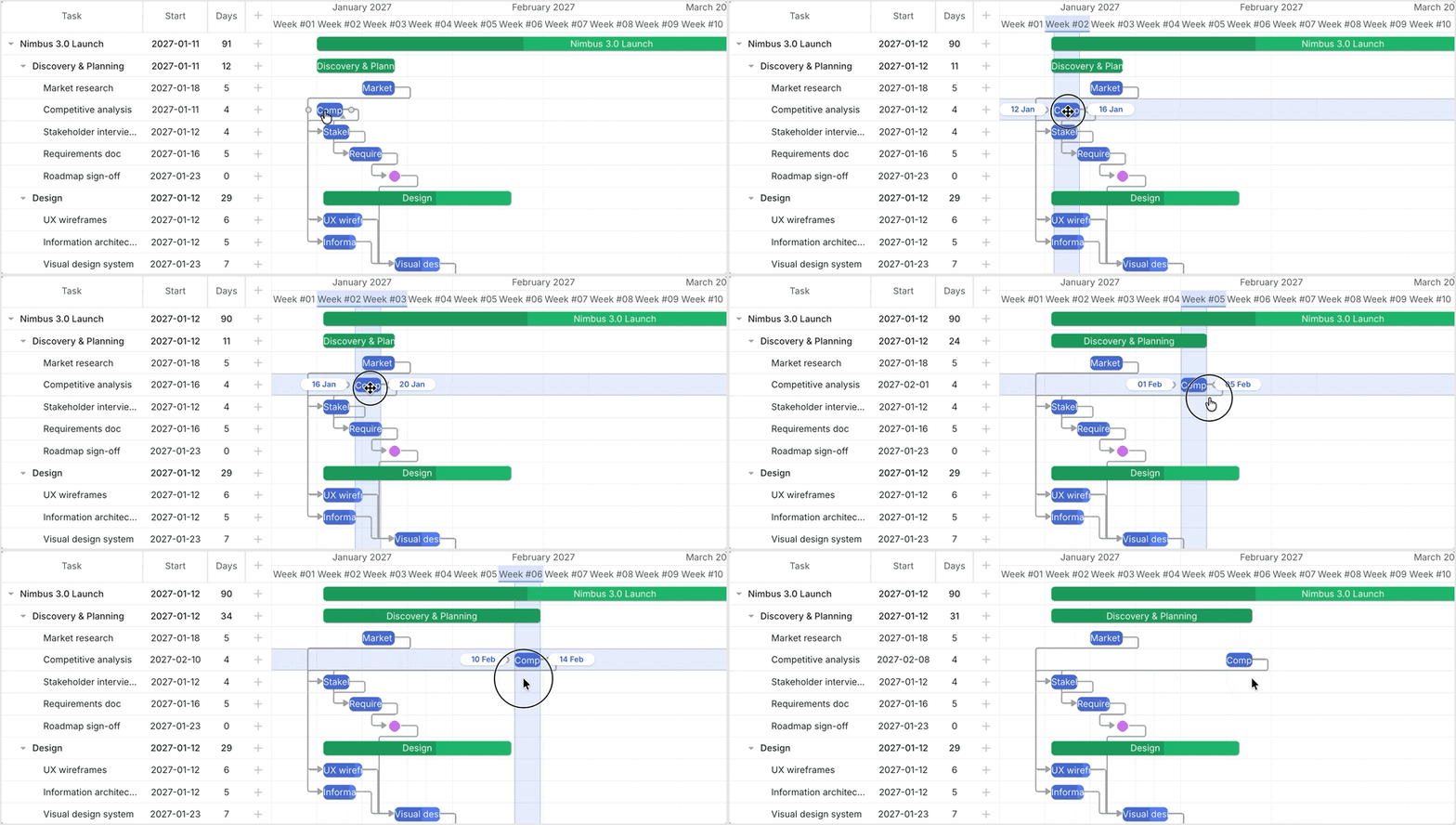
This is another option for making the target position for a dragged taskbar more apparent. It highlights the task’s presumed position at the intersection of the timeline and timescale while it is being dragged. It can be especially helpful in data-intensive Gantt charts, where it is not always easy to land the task exactly where it is intended to be.
In real working schedules, tasks are often organized by days with clear time frames. In such cases, it makes sense to snap tasks to timeline cells while they are being dragged. Thus, it becomes much easier to drop the task at the right spot, as the Gantt chart automatically places tasks within appropriate time boundaries.
Dragging does not necessarily have to end in an immediate change of the taskbar position on the timeline. You can never rule out the possibility of unintentional or mistaken changes that may trigger updates in other parts of the schedule. That is why it may be a good idea to add a dialog window that asks users to confirm the change or restore the original task position. It will help avoid undesirable changes and complications in the Gantt chart.
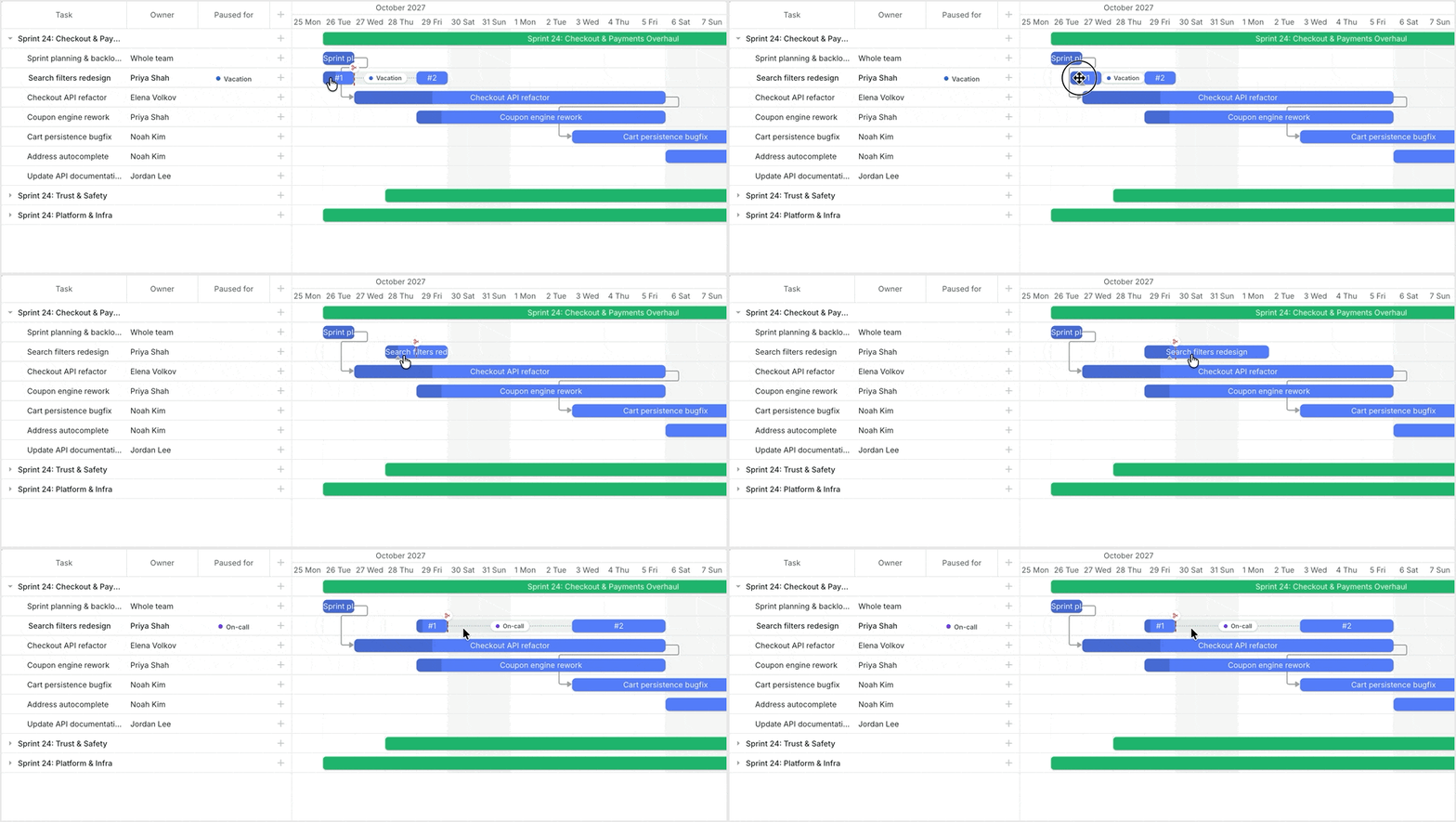
When it comes to rescheduling a large task divided into several parts (split tasks), it can be more convenient to temporarily combine split segments into a single bar. This way, users get a clear idea of the overall task duration and can move it to a new position in one go. After that, the original split structure can be restored.
As you can see, DHTMLX Gantt provides a lot of opportunities for configuring and customizing DnD behavior when rescheduling tasks in the timeline. But DnD is also used for other manipulations in interactive Gantt charts. Let’s dig further into this.
Vertical Drag-and-Drop in Gantt Chart
Apart from changing tasks’ dates in the project schedule, DHTMLX Gantt allows using drag-and-drop to modify the schedule’s structure. To be more specific, users can drag tasks vertically to change their order in the hierarchy. By default, this option is available in the Gantt’s grid panel, where this interaction can be configured in two ways via order_branch:
- a task is moved to its new position as it is dragged (order_branch = true)
- a placement marker shows the future position of the dragged task before it is dropped (order_branch = “marker”)
Note: we recommend the second option because it makes vertical dragging more predictable and ensures better performance.
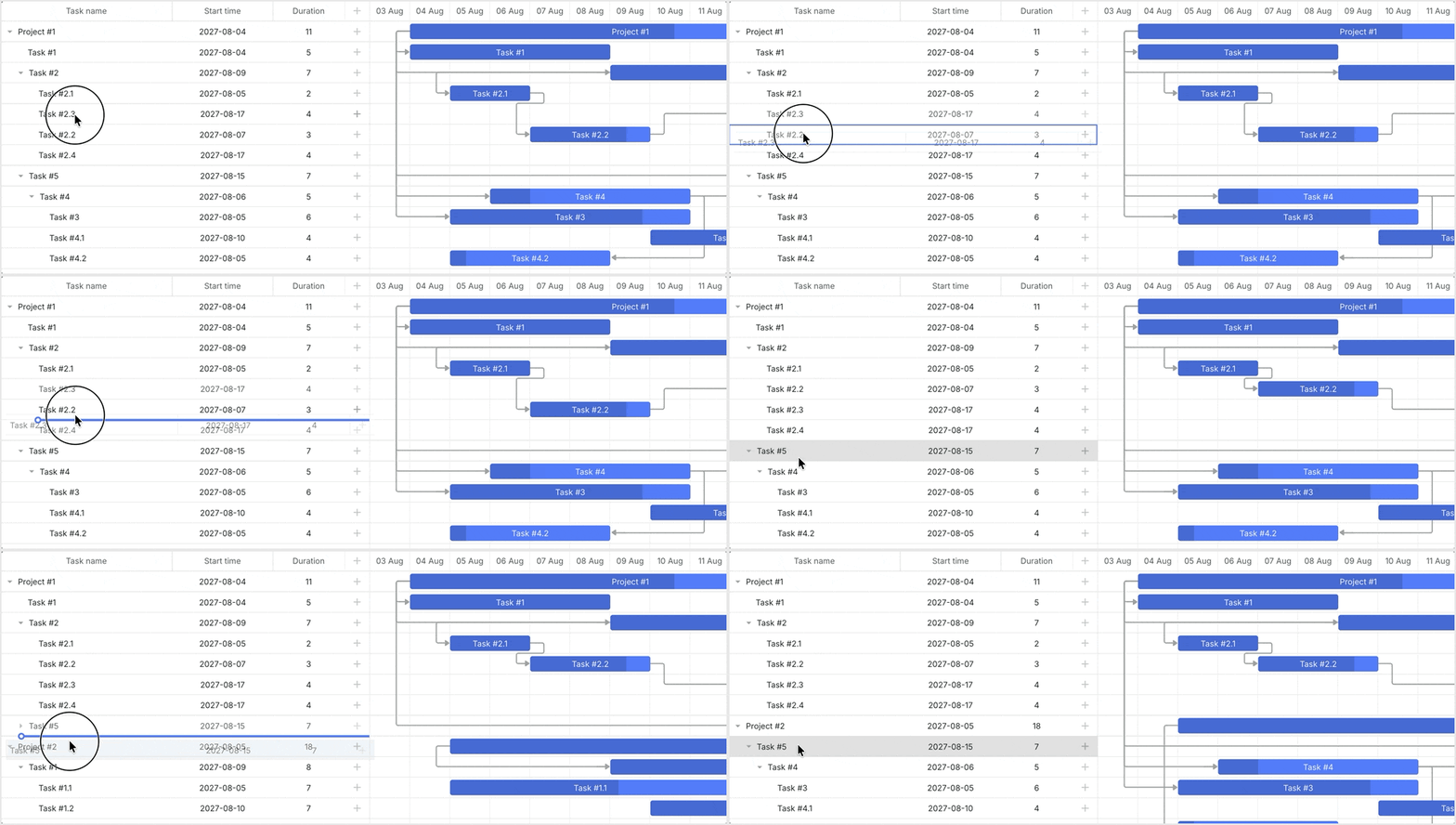
What about vertical drag-and-drop operations right in the timeline? We provide custom solutions for vertical drag-and-drop with regular and split tasks.
These interactions let end-users reorganize the project structure with simple actions directly in the Gantt chart. At the same time, the use of DnD is not limited to interactions within the Gantt interface.
Extending Drag-and-Drop Beyond the Gantt Chart
In DHTMLX Gantt, you can also use drag-and-drop to exchange data between the Gantt chart and other parts of a web app. Such scenarios require a custom solution, but we provide a few examples of how these interactions can be implemented.
For instance, there can be a workload panel with available resources or a list with unscheduled tasks. With drag-and-drop, external items can be easily added to the Gantt workflow, as in the example below.
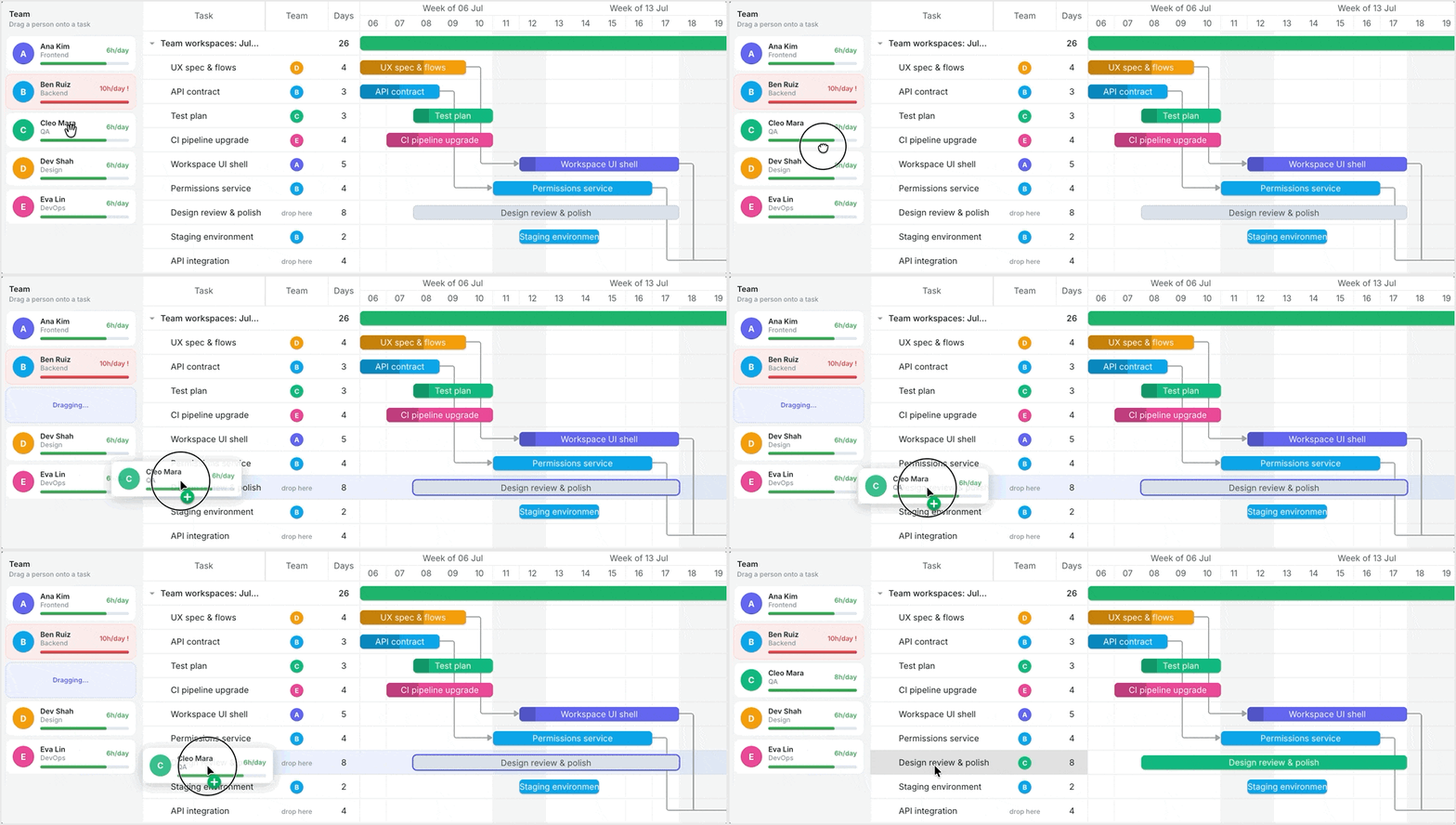
Another practical use case is when an app has two Gantt instances for different projects, teams, or planning stages. When it becomes necessary to add a task from one Gantt instance to the second one, drag-and-drop simplifies this job considerably.
Seems like we’ve covered all key capabilities of DHTMLX Gantt related to what is commonly called drag-and-drop editing in previous sections. But we cannot overlook several other areas where dragging actions can make scheduling with our JavaScript Gantt chart component more convenient.
Other Drag-Based Interactions
Apart from moving and reordering tasks, DHTMLX Gantt offers drag-related APIs and extensions for other useful task management operations.
We can start with the drag_resize property, which adds resizing controls to the edges of a taskbar and allows changing the task duration by dragging them. If needed, it is possible to specify conditions for disabling resizing of the start date, end date, or the entire task. In the example below, the end date resizing control is disabled.
Another element that can be manipulated with drag operations is a progress bar. Enabled with show_progress, it reflects the completion state of a task. It can also be customized by, for instance, adding two draggable progress bars to a taskbar instead of one.
The extensive API of our Gantt also includes the drag_timeline extension, which makes it possible to move the timeline itself by dragging it. One more useful extension is click_drag, enabling DnD interactions for creating tasks, selecting tasks (PRO edition), setting time for unscheduled tasks, and adding parts of a split task (PRO edition). More info on these drag-and-drop Gantt chart options can be found in the documentation.
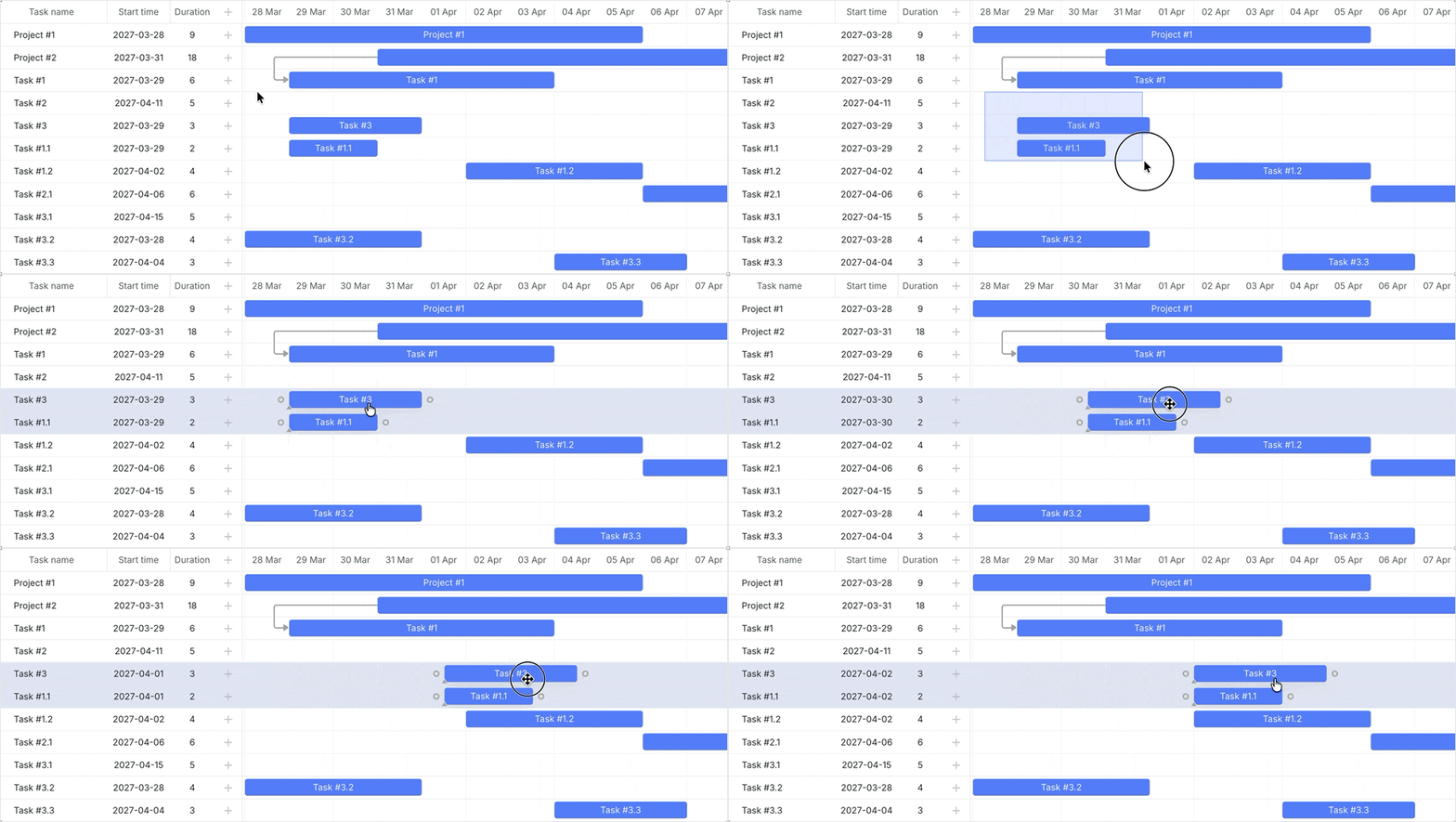
Moreover, drag-and-drop can be applied to change grid column widths, adjust task heights, and resize layout cells.
These are just a few examples of how DnD interactions can extend beyond core task-dragging scenarios. Together, they vividly demonstrate how DnD editing helps make different parts of the Gantt UI more interactive and user-friendly.
Wrapping Up
As you can see, drag-and-drop is a significant part of the editing experience in Gantt charts. In our Gantt chart JavaScript component, it can be configured, customized, and extended to support a wide range of task management operations. This flexibility allows adapting drag-and-drop interactions to the needs of particular project planning workflows in Gantt charts built with DHTMLX.