
Autumn is traditionally a busy time for product releases, as software companies get back in full gear after the summer holidays. And right in the middle of this release season, we are rolling out DHTMLX Suite 9.4. This new milestone on the roadmap of our JavaScript UI widgets library places special emphasis on accessibility. Significant improvements to keyboard navigation and screen reader support strengthen the library’s conformance with major accessibility standards. This is especially true for the JavaScript Grid component, which is now WCAG 2.2 AA-compliant.
The rest of the release covers a range of new configuration options for popular Suite widgets:
- Charts gain dual-axis charting, flexible stacking, and dynamic bar coloring
- Grid offers more configuration options for rows, grouping, and filters
- Calendar receives a toolbar with Clear, Today, and Timepicker controls
- Layout cell headers and Tabbar tabs can now use custom templates
Let us take a closer look at all these novelties.
New Heights in Accessibility
Accessibility is no longer just a nice-to-have UX feature, but a baseline requirement for modern web applications, especially at the enterprise level. That is why, in Suite 9.4, we take a major step toward more accessible UI development, introducing a set of enhancements to how Suite widgets operate and respond to the actions of users with disabilities.
DHTMLX Grid with WCAG 2.2 AA Compliance
Accessibility matters across the entire application interface, but advanced functionalities like data grids often require extra effort. They combine dense datasets with intricate navigation and interaction behavior, so even small accessibility gaps can make everyday tasks harder to complete. That is why DHTMLX Grid is a key focus of accessibility work in Suite 9.4. Now our Grid is WCAG 2.2 AA-compliant, as evidenced by our Grid Accessibility Conformance Report (VPAT® 2.5).
In this release, DHTMLX Grid provides more consistent and predictable keyboard navigation across the table’s header, body, and footer. Now, users can move cell by cell with Tab and Shift+Tab and leave the grid at its boundaries, while arrow keys navigate within and between these areas without relying on selection mode. The update also improves keyboard access to off-screen and frozen columns, ensures that Tab correctly exits the table without a footer, and prevents keyboard actions on footer cells from triggering column sorting.
On top of that, DHTMLX Suite 9.4 improves how Grid communicates changes to users via screen readers. The Grid API now has a new ariaLabel property, allowing you to set an accessible name for a grid on a web page. This can be particularly useful when your app includes multiple grid tables, as it helps screen reader users distinguish between them.
Another new API item is the announce() method, intended for notifying screen readers about UI events (sorting, filtering, data loading, editor validation).
// announce the result of a filter applied outside the grid
grid.data.filter(item => item.country === "Italy");
grid.announce(`${grid.data.getLength()} rows match the filter`);
This mechanism lets the screen reader announce a status change without interrupting the user’s navigation. These announcements belong to the UI content, so they are translated like any other text label via the widget’s locale.
DHTMLX Grid has everything you need for a WCAG 2.2 AA-compliant deployment. WAI-ARIA semantics and keyboard navigation are enabled by default, so all you have to do is add a contrast theme via the data-dhx-theme attribute of the container or of the root element. Here is what the recommended configuration looks like:
columns: [/* ... */],
data: dataset,
keyNavigation: true // true - by default
});
dhx.setTheme("contrast-light");
This configuration is a starting point for accessible Grid implementation in a web project. To get the full picture of the component’s readiness to meet the latest accessibility requirements, refer to the Grid Accessibility Conformance Report (VPAT® 2.5) and Grid Accessibility Guide.
Accessibility in Other Suite Widgets
In v9.4, many other Suite widgets follow the Grid’s path to better accessibility by providing:
- Refined keyboard navigation
In Colorpicker, the palette now acts as a single tab stop and can be navigated with Home, End, and arrow keys. Toolbar, Menu, Sidebar, and Ribbon also have notable improvements in keyboard navigation and focus management, including how menus and submenus open and close.
- Enhanced screen reader support
Just like in Grid, you can now specify accessible names for Combobox, ContextMenu, Toolbar, and Window, which screen readers will announce to help users identify relevant controls and interface elements. Colorpicker, Message, Toolbar, and Window now store widget-generated accessible names in their locales, making them translatable.
In Toolbar, Menu, Sidebar, and Ribbon, two-state and grouped buttons expose their current states to assistive technologies, but what about the buttons without visible text labels? In such cases, accessible names can be taken from tooltips for these buttons.
To view the full list of accessibility features available in DHTMLX Suite and learn how to apply them, check the complete Accessibility Support Guide.
Dual Axes, Stack Groups, and Totals in Charts
A good chart should not only visualize complex data but also make it easier for users to compare metrics and identify meaningful patterns. In v9.4, the Chart widget comes with new configuration options for building more informative charts, facilitating more in-depth analysis.
Dual-Axis Charts
Business reports or analytical materials often include related metrics with different value scales and measurement units. That’s where a dual-axis chart comes in handy. It combines metrics using two value axes, each with its own scale, within a single chart. Each data series is assigned to the axis that matches its measurement units and value range. This option is now available in the Suite’s Chart widget.
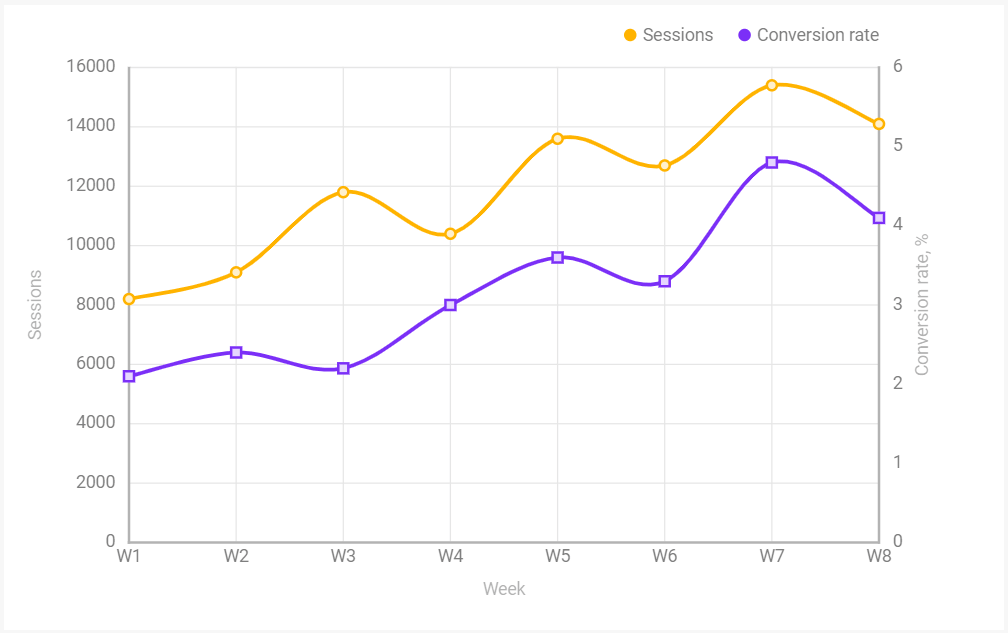
In this example, the dual-axis approach allows tracking sessions alongside conversion rate. The chart displays the number of sessions on the left axis and the conversion rate on the right, with each metric using its own scale. This makes it easy to compare how these two metrics change over time.
Flexible Stacking and Totals in Charts
Stacking is useful when you need to illustrate how several data series contribute to a total across different categories. The updated Chart widget extends this approach, enabling you to add several independent stacks to a single chart. These stacks can be organized in two ways:
- One stack per value scale
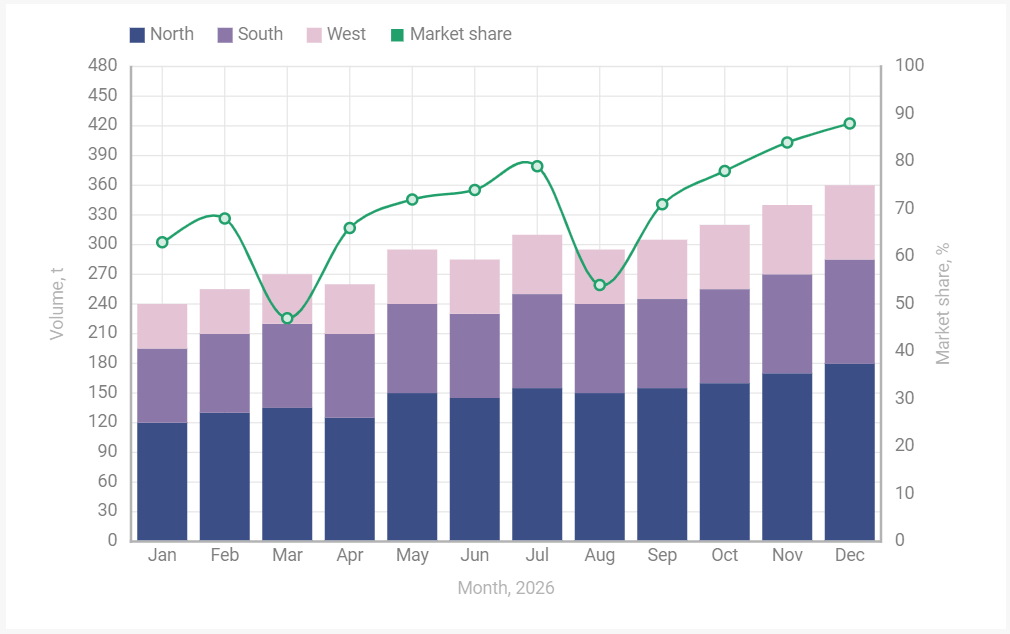
In the example above, bars show sales volume across three regions, and they form one stack tied to the left scale, while a spline represents market share measured on the right scale.
- Multiple named groups on one scale
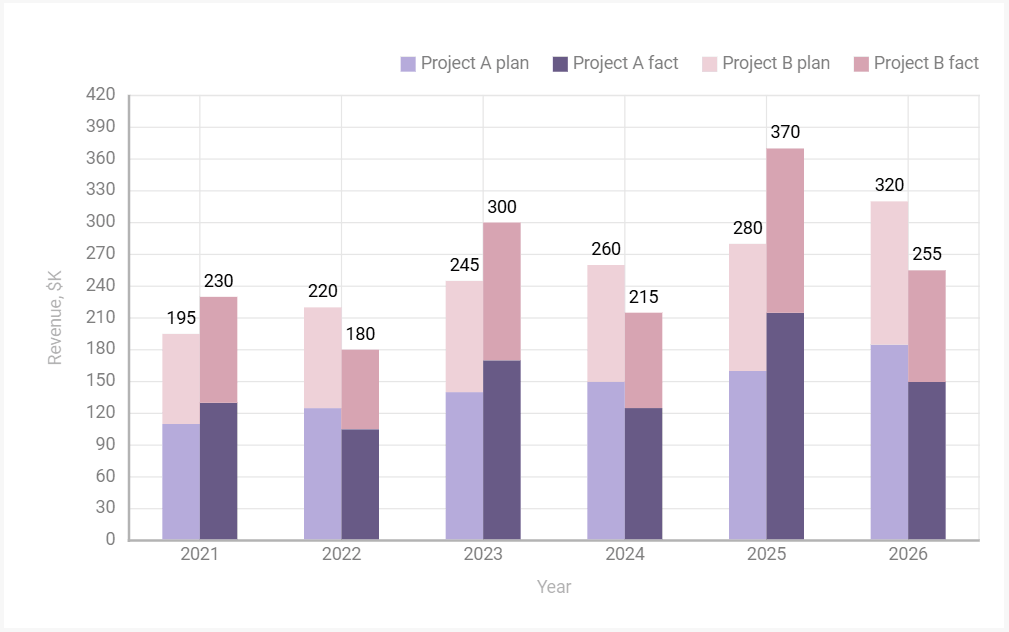
Here, the series are arranged into two separate stack groups using the same value scale: one for planned revenue and another for actual revenue in both Project A and Project B. As you have probably noticed, each stacked bar also shows the total value. It is one more new feature in Charts, making it easier to compare combined planned and actual revenue totals at a glance.
Dynamic Bar Coloring
By default, all bars in Bar and X-Bar charts share the same color. Starting from v9.4, these types of charts support data-driven coloring. This means that it is now possible to dynamically assign colors to individual chart bars based on specific conditions. For instance, a sales chart can use different colors to demonstrate when sales performance meets, approaches, or falls short of the target, as shown in the example below.
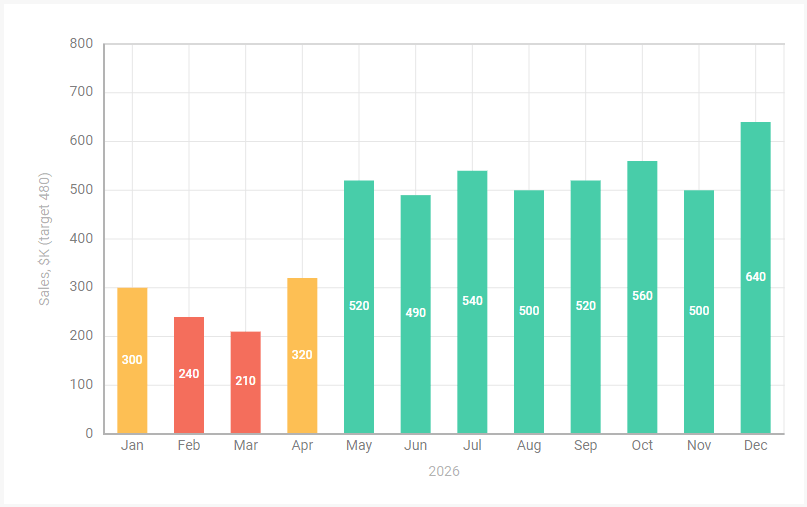
Other interesting use case scenarios for this feature include marking specific values, such as the highest and lowest results, or applying a gradient fill.
Now, after exploring the new Charts features from the perspective of their practical value, you can visit the documentation to learn how to use these configuration and customization options in your codebase properly.
More Flexibility in DHTMLX Grid Configuration
DHTMLX JavaScript DataGrid remains one of the most widely used components of the Suite library, and it continues to evolve to meet growing needs of data-intensive business apps. While preparing this release, we identified several areas where additional flexibility can make a difference. As a result, v9.4 provides new Grid configuration options for header/footer sizing, data grouping, and filtering behavior.
Individual Heights for Header and Footer Rows
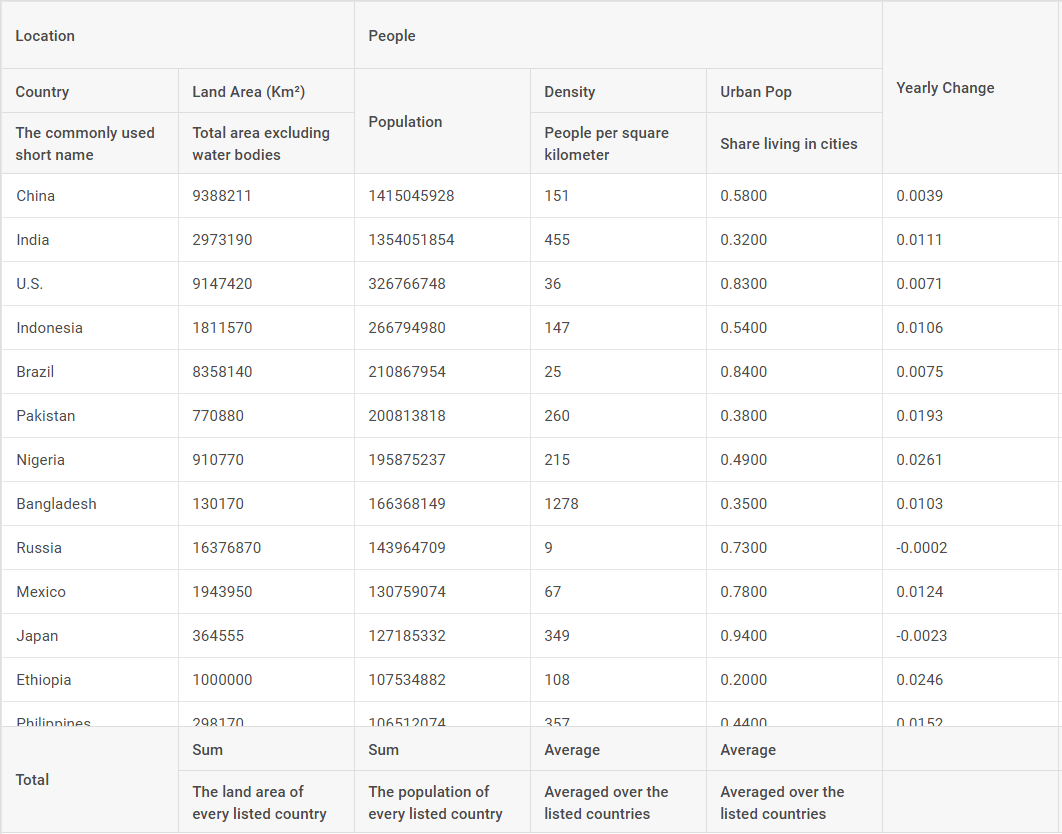
In grid tables, header and footer rows do not always require the same amount of space. For such cases, DHTMLX Grid now allows specifying the height for any particular header/footer row via the new headerRowHeight and footerRowHeight properties. That’s exactly what you need when a grid table needs to accommodate different levels of column headers or includes rows with varying amounts of content. Also, we added the auto setting (available in the PRO edition only) that ensures automatic row resizing in the header/footer based on the content.
Here is how it works in code:
autoWidth: true,
resizable: true,
columns,
data: dataset,
headerRowHeight: [60, null, "auto"],
footerRowHeight: [40, "auto"],
});
Customizable Group Counters
From now on, group headers in the grid can include customizable group counters providing additional information alongside group names. In practice, counters help users track the number of records in each group and how those numbers change when filters are applied.
autoWidth: true,
columns: columns(),
data: tasks.map(item => Object.assign({}, item)),
// $count follows the filtering, $totalCount stays at what the group was built with
group: group({ counter: row => "(" + row.$count + " of " + row.$totalCount + ")" })
});
In addition, it is possible to keep groups visible even when they become empty after filtering, so users can still see categories with no matching results (available in the PRO edition only).
autoWidth: true,
columns: columns(),
data: tasks.map(item => Object.assign({}, item)),
group: group({ showEmptyGroups: true })
});
Both configuration options can be tested in this live sample.
Custom Options for Filter Dropdowns
By default, DHTMLX Grid automatically generates the list of options for filter dropdowns from column data. But what if you need to add valid filtering options that the data does not currently contain, exclude the ones that users should not filter by, or change the order in the dropdown list? With DHTMLX Suite 9.4, you can implement such customizations to fit your application’s needs better.
Play around with custom filter options in this sample.
Other Improvements
Lastly, we would like to highlight a handful of smaller but useful updates delivered by our team for v9.4:
- Calendar can be equipped with the toolbar, enabling users to reset the selection, swiftly navigate to the current date, and set a time using corresponding controls. Sample with a toolbar >
- Layout allows you to create more diverse structures and schemes for application pages by adding custom HTML content or other Suite widgets in cell headers. Sample with a widget and HTML template >
- Tabbar lets you enrich tab titles with custom HTML content like icons or badges. Sample with custom tab titles >
Apart from that, the update includes a few improvements to DataCollection and TreeCollection helpers, along with a set of bug fixes for grouping, filtering, and data aggregation.
This concludes everything we wanted to share with you about DHTMLX Suite 9.4. Use the “What’s New” section as a starting point for your own analysis of this release.
To try the new Suite version in action, download a free 30-day trial version. For our current clients, v9.4 is available in their Client’s Area.