
Inspired by the warm welcome of DHTMLX Gantt 10.0, our team has spent the last few months crafting a series of exciting new features. So it is time to present the results of this work – DHTMLX Gantt 10.1. This release brings much more than you’d typically expect from a minor update.
The new version of the DHTMLX JavaScript Gantt chart delivers substantial improvements across several areas:
- Auto-scheduling (PRO) – Scheduling preview for evaluating and applying proposed schedule changes, constraint conflict resolution, and effort-driven scheduling.
- Resource management (PRO) – Resource leveling, allocation scenario comparison, and resource suggestions through integration with DHTMLX Planning Engine. Gantt can now display delayed task starts and pauses within tasks.
- Accessibility (Community and PRO) – DHTMLX Gantt 10.1 conforms to WCAG 2.2 Level AA. The release expands keyboard navigation, improves screen reader support, and adds adjustable contrast and visual cues for users with color vision deficiencies.
- Task management (PRO) – An advanced task editor (lightbox) and the ability to mark tasks and dependency links as inactive.
- WBS codes and task numbering (PRO) – Configurable WBS codes stored on tasks, the option to lock existing codes to prevent automatic overwrites, and outline and row numbers for referencing tasks.
- Built-in UI controls (Community and PRO) – Configurable toolbars, context menus, and reusable controls for your Gantt interface.
Let’s take a closer look at the key updates in this release.
Auto-Scheduling: What-If Previews, Constraint Conflict Resolution, and Effort-Driven Scheduling (PRO)
Auto-scheduling is the centerpiece of this Gantt release. The Gantt’s scheduling engine now supports a range of new features that give you more control over scheduling changes. Now, let’s explore new capabilities one by one.
What-If Scheduling Previews
What happens to the schedule if you add a dependency between two tasks? With the what-if scheduling preview in DHTMLX Gantt PRO 10.1, you can see how the auto-scheduling engine would recalculate the schedule before applying the change.
Call gantt.ext.autoScheduling.preview(changes) to test a proposed task update, dependency, or constraint. Your application can use the result to show how many tasks would be affected and flag any scheduling conflicts, so users can decide whether to apply the change.
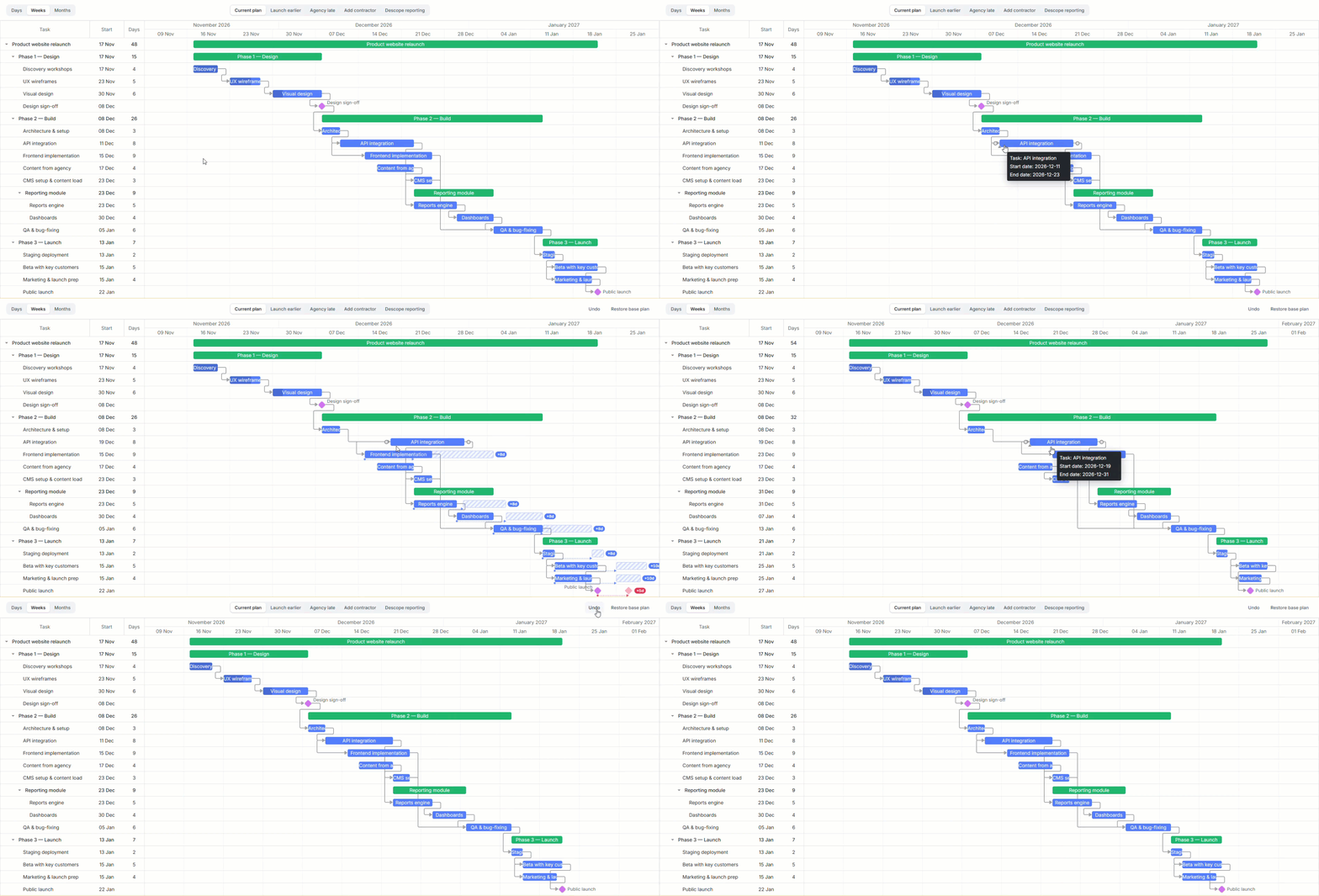
The example below previews the effect of adding a finish-to-start dependency from task 2 to task 3. It reports how many tasks would be affected and lists the conflicts that this change would cause.
links: { add: [{ source: 2, target: 3, type: "0" }] }
};
const scheduling = gantt.ext.autoScheduling;
const preview = scheduling.preview(changes);
console.log("Tasks affected:", preview.summary.tasksAffected);
console.log("New conflicts:", preview.conflicts.filter(c => c.isNew));
To apply the proposed change and recalculate the schedule, pass the same changes object to scheduling.apply() with solve:true. Previews run on the project data already loaded into Gantt, the change set describes only the difference. The project is not modified until you call apply().
if (outcome.status === "stopped") {
console.log("An event handler stopped a change:", outcome.stoppedAt);
}
If an event handler stops a write, earlier changes made during the same operation remain applied.
Scheduling Constraint Conflict Resolution
Specifying dependencies and constraints is essential for building a realistic project schedule in the Gantt chart, but contradictory rules may result in scheduling conflicts. A conflict occurs when a user edit makes a dependency require a date that falls outside a task’s constraint. The new resolve_constraint_conflicts setting determines how Gantt responds. Gantt checks for new conflicts after task moves, resizes, lightbox saves and inline edits. Existing conflicts in loaded data, adding or deleting a link, and calls to gantt.autoSchedule() do not trigger this new mechanism for resolving constraint conflicts.

There are three conflict resolution modes:
- keep (default) – keeps the constraint, even if the dependency stays unaddressed
- adjust – moves the constraint date automatically and keeps the constraint type
- prompt – opens a dialog that describes the affected tasks and dates. A user can move the constraint date, remove the constraint, deactivate the dependency (when that resolves every new conflict), or keep the constraint.
Note: adding the conflict resolution setting requires enabling auto-scheduling and auto_scheduling.apply_constraints: true.
Here is an example of enabling the prompt mode for conflict resolution:
gantt.config.auto_scheduling = {
enabled: true,
apply_constraints: true,
resolve_constraint_conflicts: "prompt"
};
From the user’s perspective, this feature is quite straightforward. The conflict dialog is fully keyboard-accessible. Cancel, Esc, or a click outside the dialog reverts the edit. With the Undo plugin enabled, the edit and its resolution form a single undo step, so Ctrl+Z (with the keyboard navigation enabled) restores the previous task dates and constraints.
Effort-Driven Scheduling with Resource Assignments
Until now, resource load diagrams and histograms in DHTMLX Gantt have mainly been used to visualize the allocation of resources across the project and their workload, without showing how adding or removing resources affects task duration. The new Gantt edition fills in this gap by making resource assignments a part of the task schedule calculation.
This new effort-driven scheduling concept lets task duration change when resources are assigned to this task. It follows the well-known Work = Duration × Units model used in project planning software and supports three modes that determine which value should remain unchanged when the others are recalculated:
- fixed_duration – keeps task duration unchanged
- fixed_units – keeps resource assignment units unchanged
- fixed_work – keeps the amount of work unchanged
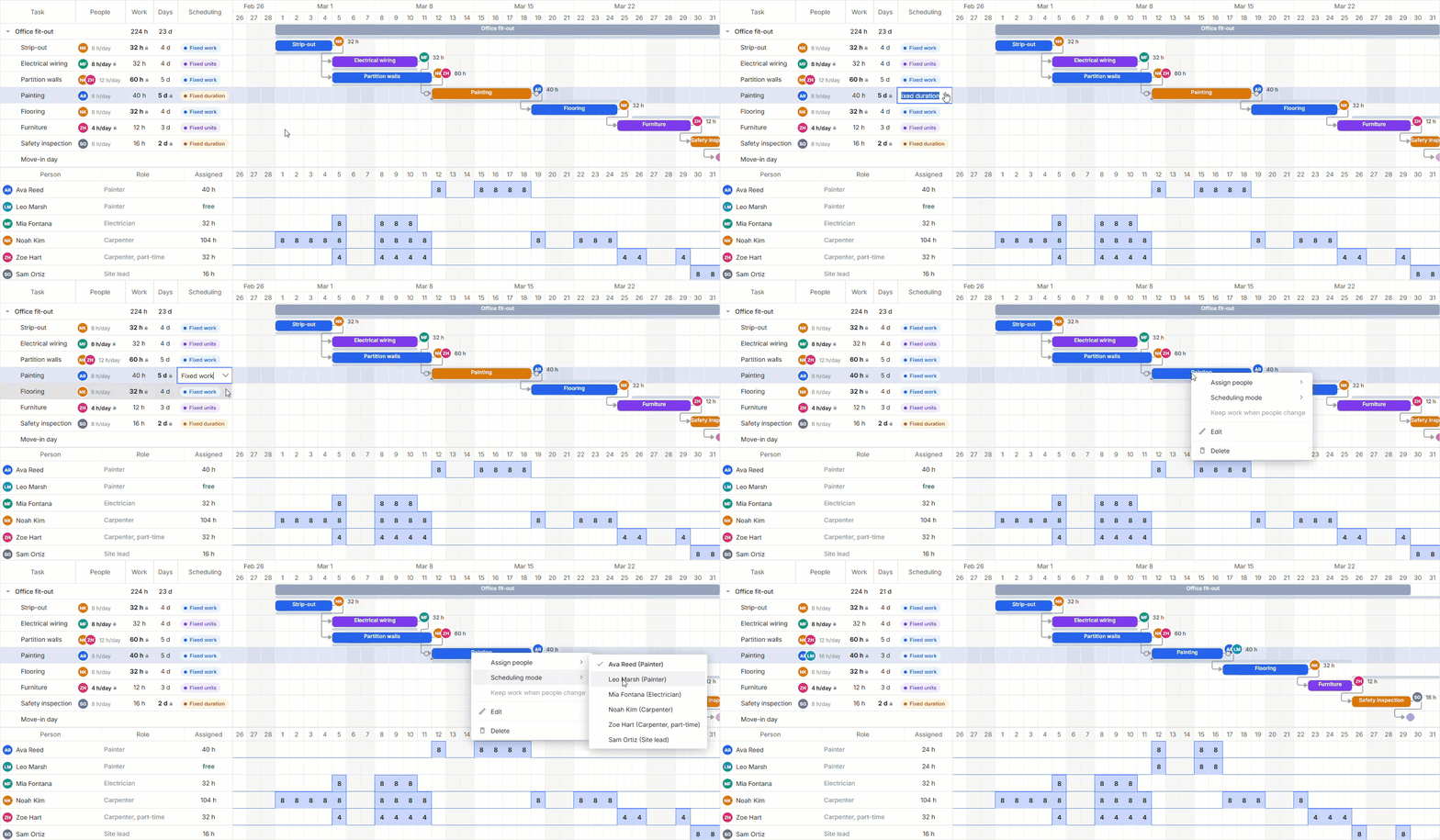
For instance, with fixed_work enabled, assigning extra resources to an 40-hour task reduces the task duration while keeping the required work the same.
Here is how to enable effort-driven scheduling with fixed_work as the default mode:
gantt.config.effort = {
enabled: true,
mode: "fixed_work",
work_unit: "hour",
hours_per_day: 8
};
This configuration uses the tasks’ owner property for assignments and sets the work unit to hours. The application must also create and populate the resource store with the available resources.
With effort-driven scheduling, resource allocation becomes an active part of the scheduling process rather than just a way to visualize workload across the project. But it is only one part of the new capabilities for resource-aware scheduling provided in DHTMLX Gantt 10.1.
Resource Leveling and Allocation with DHTMLX Planning Engine (PRO)
DHTMLX Gantt 10.1 PRO Edition displays resource-leveled schedules when integrated with DHTMLX Planning Engine. Resource leveling automatically adjusts project schedules based on resource availability and workload, helping resolve conflicts between overlapping assignments and prevent overallocations. The integration also empowers Gantt with the abilities to provide alternative resource allocation scenarios and suggest suitable task assignments based on current workloads.
DHTMLX Planning Engine is a headless library for advanced scheduling and resource management. It is a recent addition to the DHTMLX product line. The Planning Engine provides a dedicated calculation core behind the Gantt interface, while the Gantt component remains responsible for the visual representation and editing of project data. This combination allows teams to extend Gantt-based applications with additional enterprise-grade planning capabilities while retaining the existing project architecture.
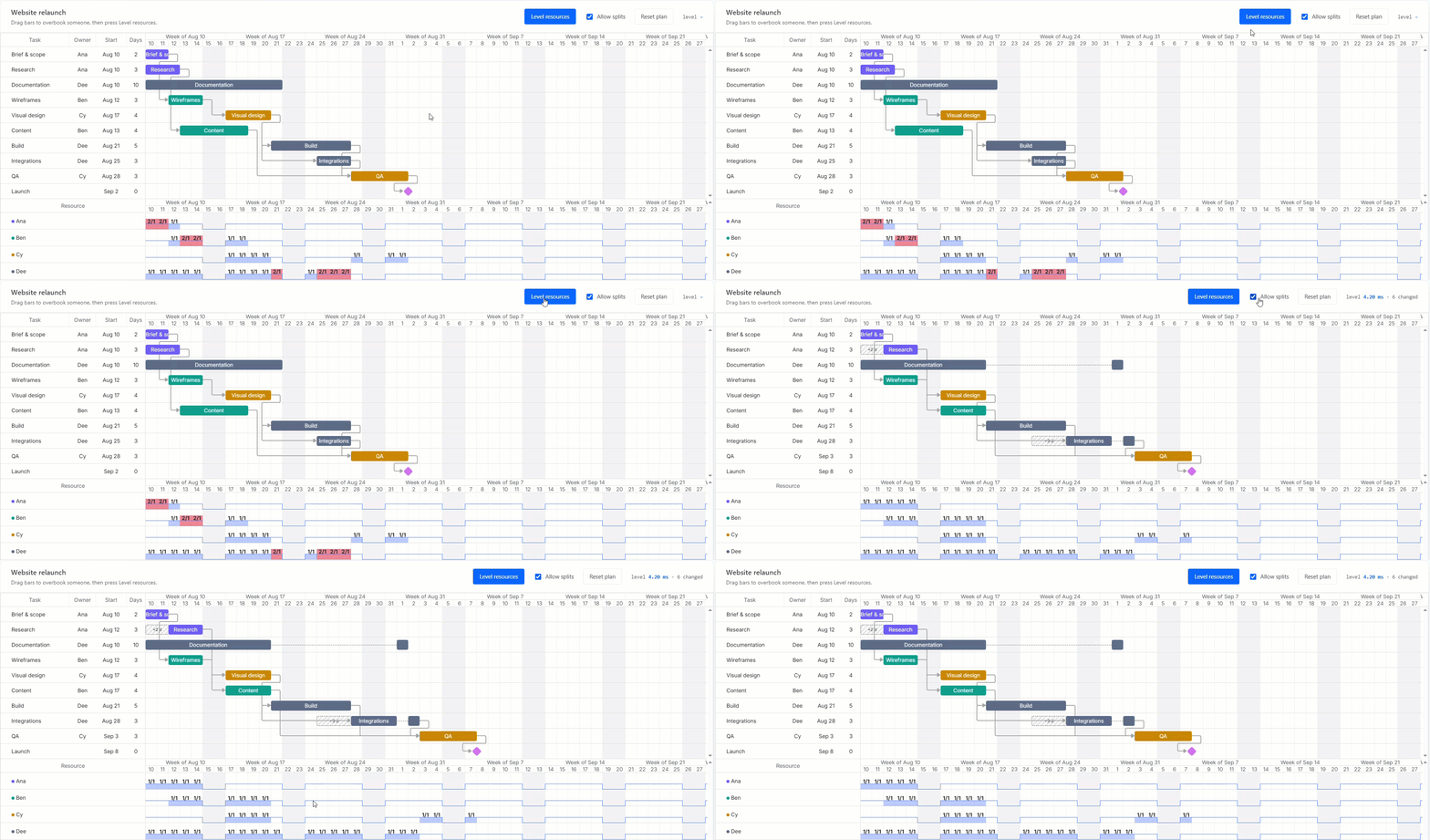
Technically, the integration includes the Planning Engine module and the DHTMLX Gantt PRO edition. The following example registers the Planning Engine and selects it for auto-scheduling:
Gantt.registerSchedulingEngine("plen", () => Gantt.createPlanningEngine(plen));
gantt.plugins({ auto_scheduling: true });
gantt.config.auto_scheduling = { enabled: true, engine: "plen" };
gantt.init("gantt_here");
gantt.parse(projectData); // tasks, links, resources and assignments
const scheduling = gantt.ext.autoScheduling;
const proposal = scheduling.preview(null, {
level: { allowSplits: false },
overallocations: true
});
scheduling.level({ allowSplits: false });
After initializing Gantt and loading the project data, you can use the integrated Planning Engine to calculate a resource-leveled schedule. Each scheduling call passes the chart’s current tasks, dependencies, calendars, resources and assignments to the engine. The preview() method returns the leveled plan and the remaining overallocations without changing the chart. The level() method writes the leveled schedule. Find more details on integrating DHTMLX Gantt with the Planning Engine in the guide.
Together, DHTMLX Gantt and Planning Engine form a strong foundation for building apps that can handle complex resource planning workflows.
Resource Leveling Delays and Paused Tasks (PRO)
DHTMLX Gantt 10.1 can display two effects of resource leveling: delayed task starts and pauses within tasks. To calculate a leveled schedule, integrate Gantt with an engine that supports resource leveling, such as DHTMLX Planning Engine.
Tracking Task Delays
The leveling_delays task property records how far resource leveling shifts a task from the date its dependencies allow. The task’s dates already account for this delay, so the Gantt chart displays the resulting schedule without requiring any extra calculations.
In the example below, the hatched areas show deviations from original start dates for tasks after resource leveling. Later auto-scheduling runs keep the delays, unless a constraint limits them or a user changes the task’s start date manually.
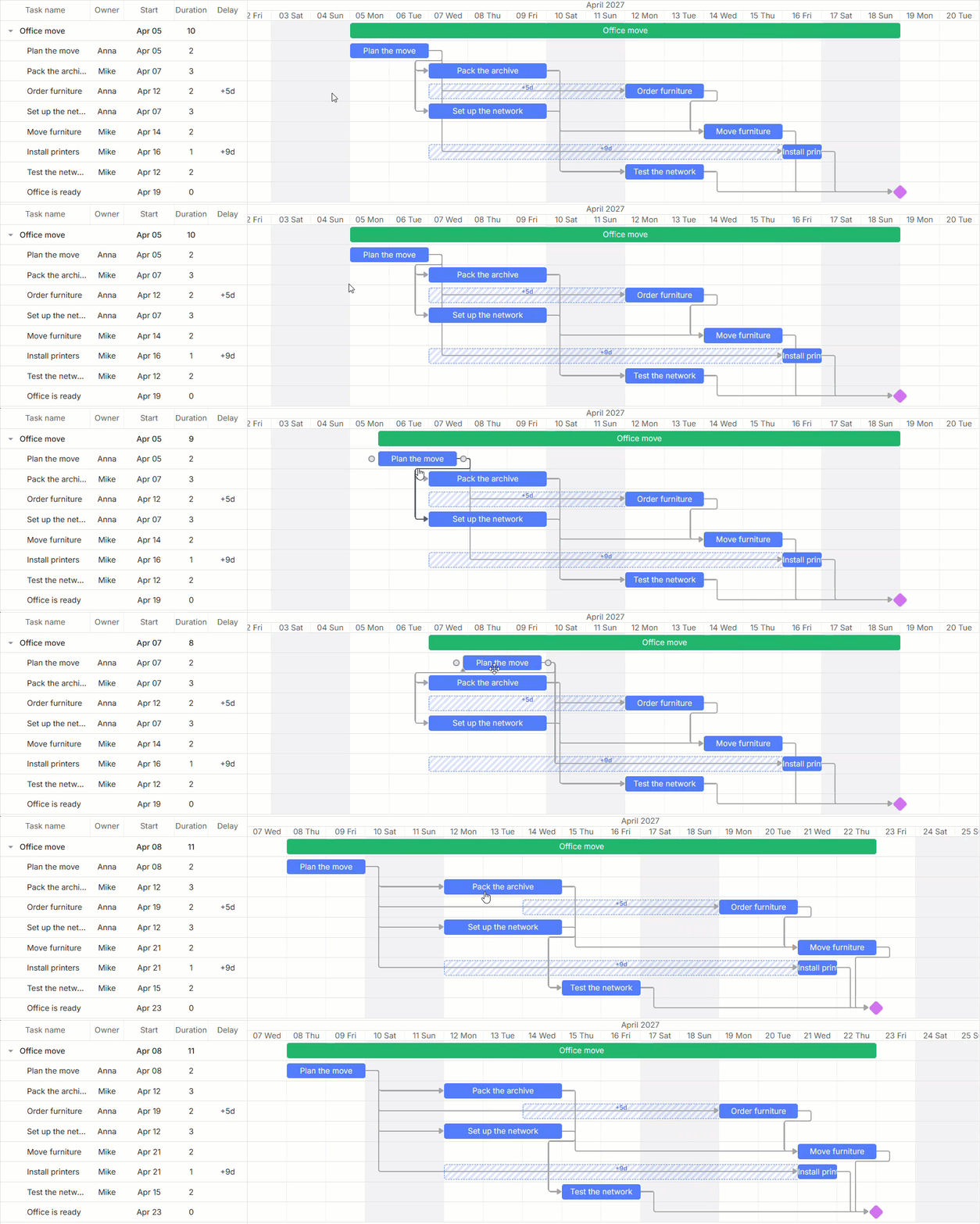
Here is an example of a task with a five-day leveling delay:
tasks: [
{ id: 13, text: "Order furniture", start_date: new Date(2027, 3, 12),
duration: 2, leveling_delay: 5 }
]
});
gantt.parse({
tasks: [
{ id: 3, text: "Frontend", start_date: new Date(2027, 3, 5),
duration: 8, pauses: [{ at: 3, length: 2 }] }
]
});
The delay is measured in elapsed time using the configured duration unit, so weekends are also included in the calculation.
Showing Pauses Within a Task
In resource-leveling scenarios, work on a task may need to be paused and resumed later to resolve conflicts. DHTMLX Gantt now lets you represent these interruptions using a new split-task model, similar in concept to task splits in Microsoft Project.
This model keeps the work in a single task and records interruptions in its pauses property. The Gantt chart shows working periods as separate segments, and excludes pauses from resource load calculations.
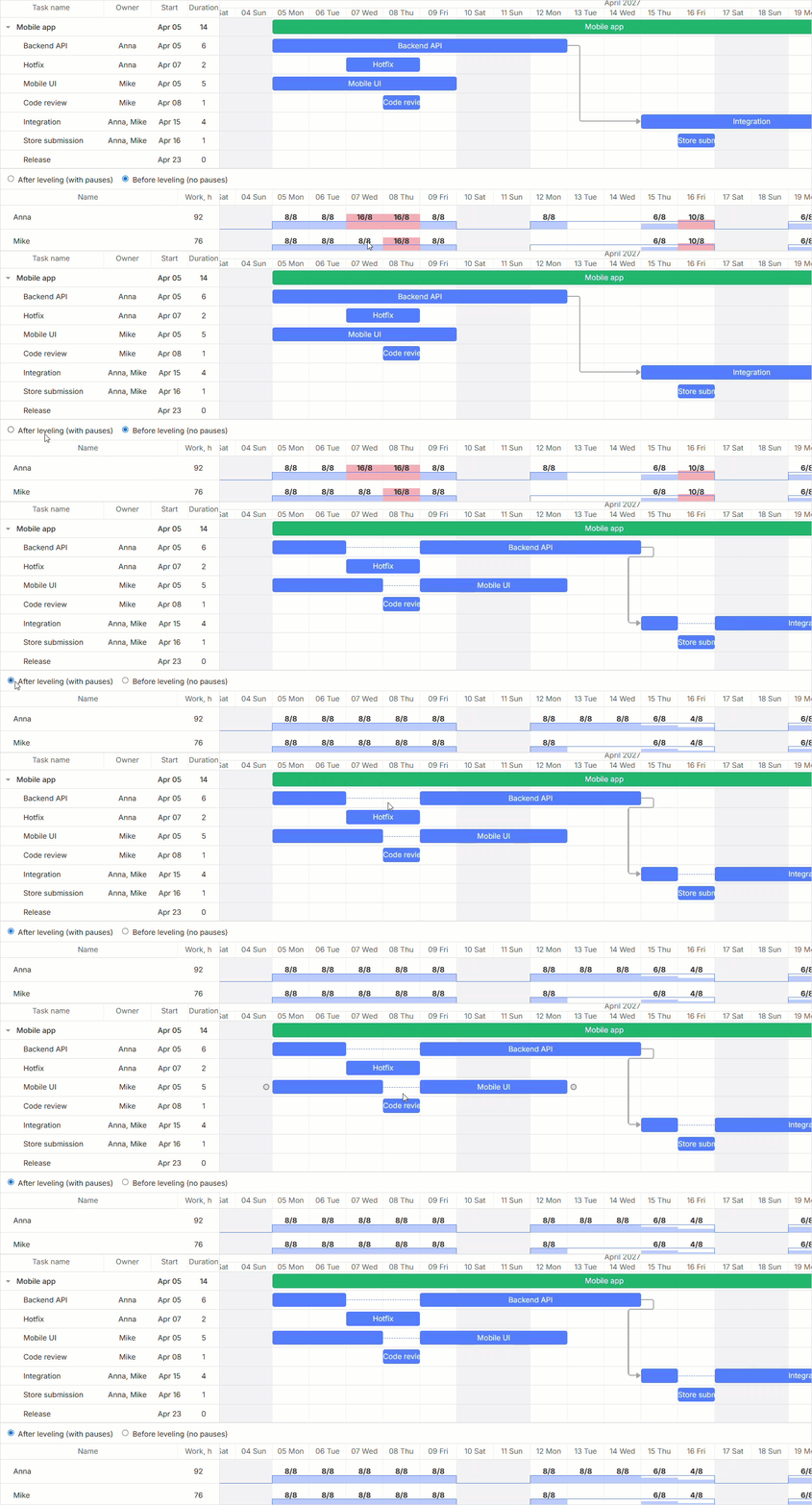
In the example above, resource leveling resolves the work overload issue by splitting long tasks with pauses, which can be used by Mike and Ann to handle short urgent tasks.
The following code snippet shows how to set a pause in a task using the pauses property:
tasks: [
{ id: 3, text: "Frontend", start_date: "2026-04-06 00:00",
duration: 8, pauses: [{ at: 3, length: 2 }] }
]
});
The position and length values of each pause are based on elapsed time, including non-working days, in the configured duration unit. Working time, however, is calculated using the task’s calendar. The existing split-task display remains available for showing a parent task’s subtasks on a single row.
Note: This new approach to showing interruptions in tasks currently has some limitations: paused tasks do not support effort-driven calculations, do not display a progress bar, and pauses are not preserved during MS Project import or export. The model is available for regular tasks with duration units (minutes, hours, or days) and duration_step set to 1.
DHTMLX Gantt Meets WCAG 2.2 Level AA Standard
DHTMLX Gantt 10.1 also brings accessibility to the forefront with a range of accessibility improvements that help meet WCAG 2.2 AA requirements and a thorough overview of the component’s conformance in Accessibility Conformance Report (VPAT® 2.5).
Our goal is not simply formally meeting relevant accessibility requirements, but also ensuring that our latest efforts in this area have real practical value for users with different accessibility needs.
Let us start by highlighting how accessibility enhancements introduced in v10.1 affect various aspects of working with DHTMLX-based Gantt charts:
- New WAI-ARIA attributes
The updated Gantt component expands the list of supported WAI-ARIA roles and attributes used to provide semantic information about the Gantt interface to screen readers. For instance, the task grid uses the treegrid role, while ARIA attributes communicate task hierarchy, expanded and collapsed states, selection, and row position. This way, assistive technologies can better “understand” the role and state of Gantt chart elements.
- Enhanced screen reader support
Screen readers can now provide more detailed verbal messages about Gantt elements. When users navigate the Gantt chart, they can hear announcements about task types, dates, durations, and other relevant information. The Gantt component also supports spoken feedback for dynamic operations in the chart. Moving or resizing a task or sorting project data triggers announcements that accompany corresponding updates in the chart. Screen reader labels are included in the component’s locale files, and they are translated with the rest of the UI when the locale changes.
Moreover, there are several ways to customize screen reader output. The public gantt.ext.accessibility API allows replacing current Gantt chart labels for screen readers. The new announce() method helps create custom messages for specific events without predefined labels describing them (e.g., drag-and-drop operations, save/failed status).
DHTMLX Gantt 10.1 has been successfully tested with popular assistive technologies, including NVDA, JAWS, and VoiceOver.
- Keyboard navigation in the resource panel
Keyboard navigation now covers the resource panel as well. The Tab key moves focus between the main areas of the Gantt chart and the resource panel, while arrow keys, Home, and End allow navigating within the resource view.
- Contrast themes and non-color cues for visual accessibility
Themes with sufficient contrast are an essential part of visual accessibility. DHTMLX Gantt comes with two specialized Black and White contrast skins, while its Dark skin already meets AA contrast out of the box. For users who prefer the default Terrace light skin, the new increase_contrast option raises its contrast to the AA level.
However, visual accessibility is not limited to contrast. There is another new API option, colorblind_friendly, that adds non-color cues to the Gantt chart. It can be a line at the progress boundary, hatching on project bars or over-allocated resource cells, and an outline/shadow on critical tasks. These indicators make it easier for users with color vision deficiencies to notice important information.
The example below shows the Gantt chart with the default Terrace theme and enabled increase_contrast and colorblind_friendly settings.
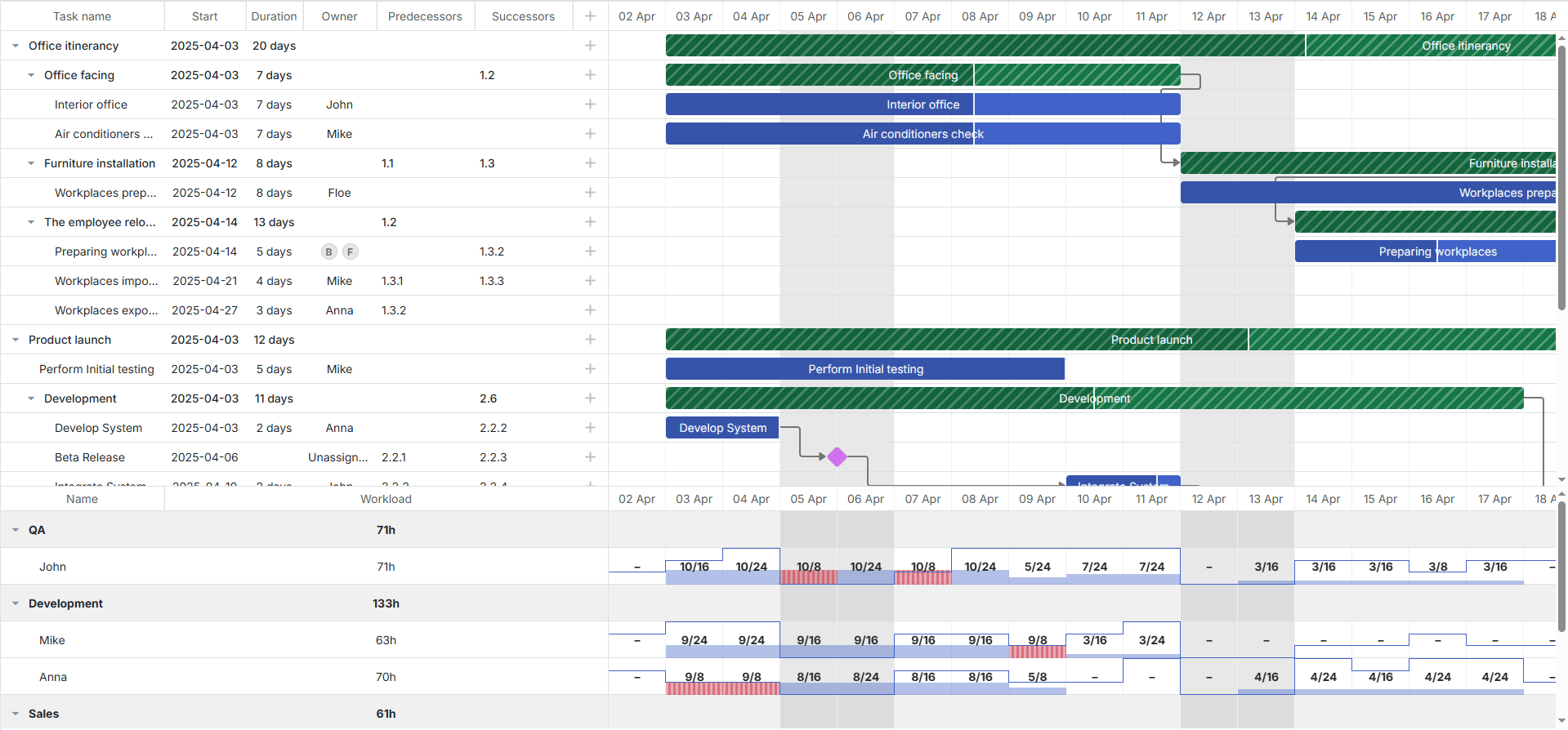
These new visual accessibility options, along with WAI-ARIA support (enabled by default) and enabled keyboard navigation, form the recommended Gantt configuration for a WCAG 2.2 AA-compliant deployment:
gantt.config.accessibility = {
aria: true,
increase_contrast: true,
colorblind_friendly: true
};
gantt.init("gantt_here");
All these novelties introduced in v10.1 helped us to bring the Gantt component up to date with major accessibility standards, including WCAG 2.2 Level AA, Section 508 of the U.S. Rehabilitation Act, and EN 301 549.
To get acquainted with all accessibility features currently available for DHTMLX Gantt and learn how to configure them, read the accessibility guide.
In practice, accessibility depends not only on the Gantt component but also on the application that contains it. The host page must also follow accessibility best practices. It should have a declared language, a clear structure, and an accessible name for the Gantt container (if the page includes multiple components).
New Advanced Task Editing Form (PRO)
As project workflows become more sophisticated, users need a more convenient way to manage tasks, dependencies, resource assignments, advanced settings, and custom fields. The new advanced task edit form brings these details together in a configurable editing interface.
The form organizes different aspects of task management into dedicated tabs and sections. Users can open it by double-clicking a task and modify its general settings, dependencies, involved resources, constraints, and other parameters, all in one place.
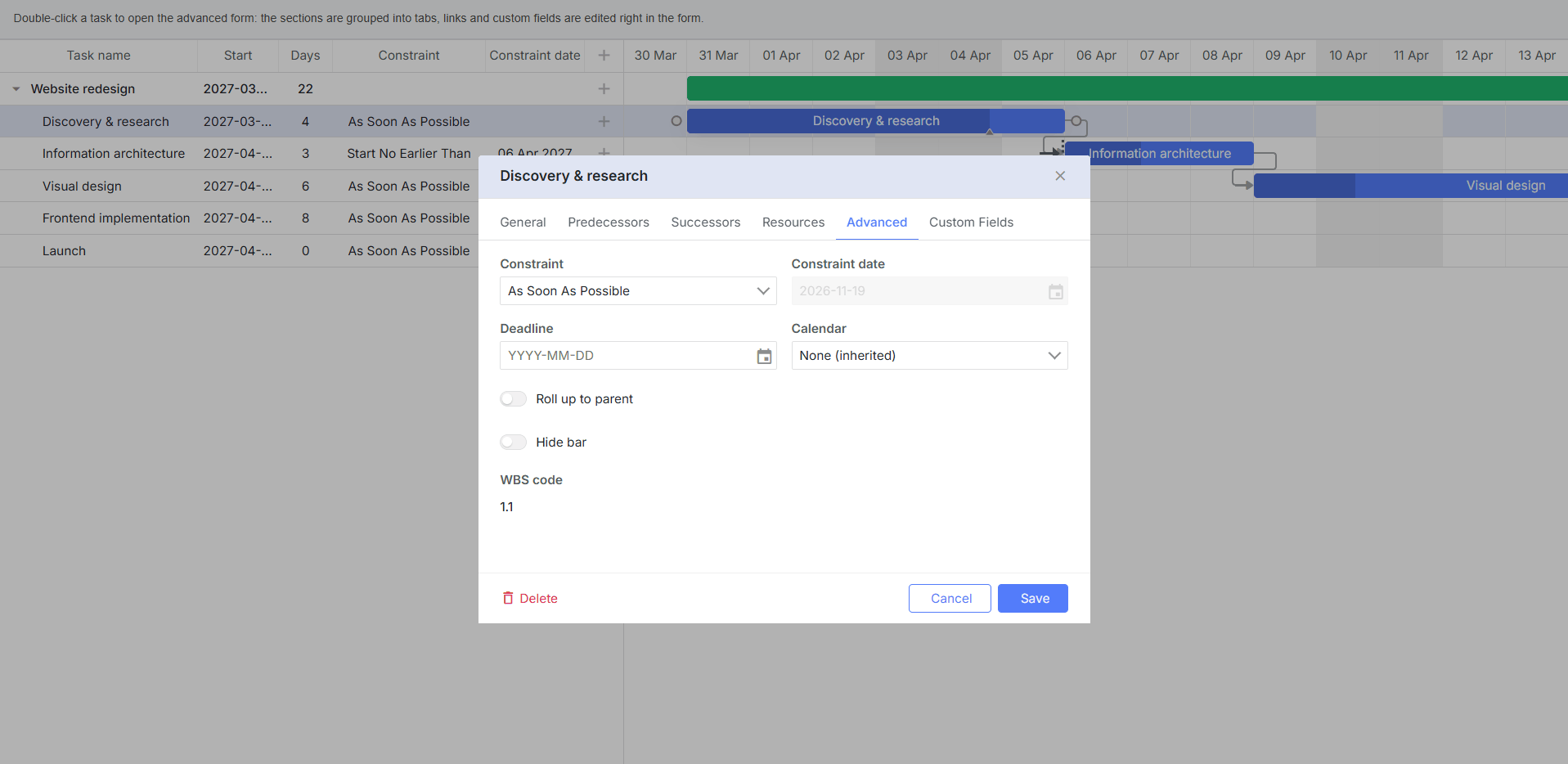
It is not necessary to stick to the default layout of the edit form. You can customize the form structure: choose which sections to display, arrange them into rows and columns, and, if needed, add fields for custom task properties.
To add the new task edit form to the Gantt configuration, enable the task_form plugin before initializing Gantt. The advanced form then replaces the standard lightbox. Set gantt.config.lightbox.advanced to false to switch back.
gantt.config.lightbox.sections = {
tabs: [
{ name: "general", children: [
{ name: "description", type: "textarea", map_to: "text" },
{ cols: [
{ name: "ticket", label: "Ticket", type: "text", map_to: "ticket" },
{ name: "cost", label: "Cost", type: "stepper", map_to: "cost", min: 0 }
] },
{ name: "time", type: "duration", map_to: "auto" }
] },
{ name: "predecessors", children: [
{ name: "predecessors", type: "predecessors" }
] }
]
};
This form configuration specifies two tabs: General and Predecessors. The General tab contains the task description, duration settings, and two custom fields (Ticket and Cost) placed side by side. A separate Predecessors tab provides access to dependency editing.
Extended WBS Codes and Task Numbers (PRO)
DHTMLX Gantt 10.1 PRO lets you store Work Breakdown Structure (WBS) codes as task properties and define a code format for each level of the project hierarchy. Each format can include a prefix, a numbering sequence, and a separator. If another system has already assigned codes to your tasks, you can lock them to prevent automatic overwrites. These codes help users quickly find tasks and see where they fit in the project. The updated Gantt extends the existing WBS functionality with more flexible task identification options.
Try the WBS Code Editor demo to see how to define and apply WBS codes across an entire project.
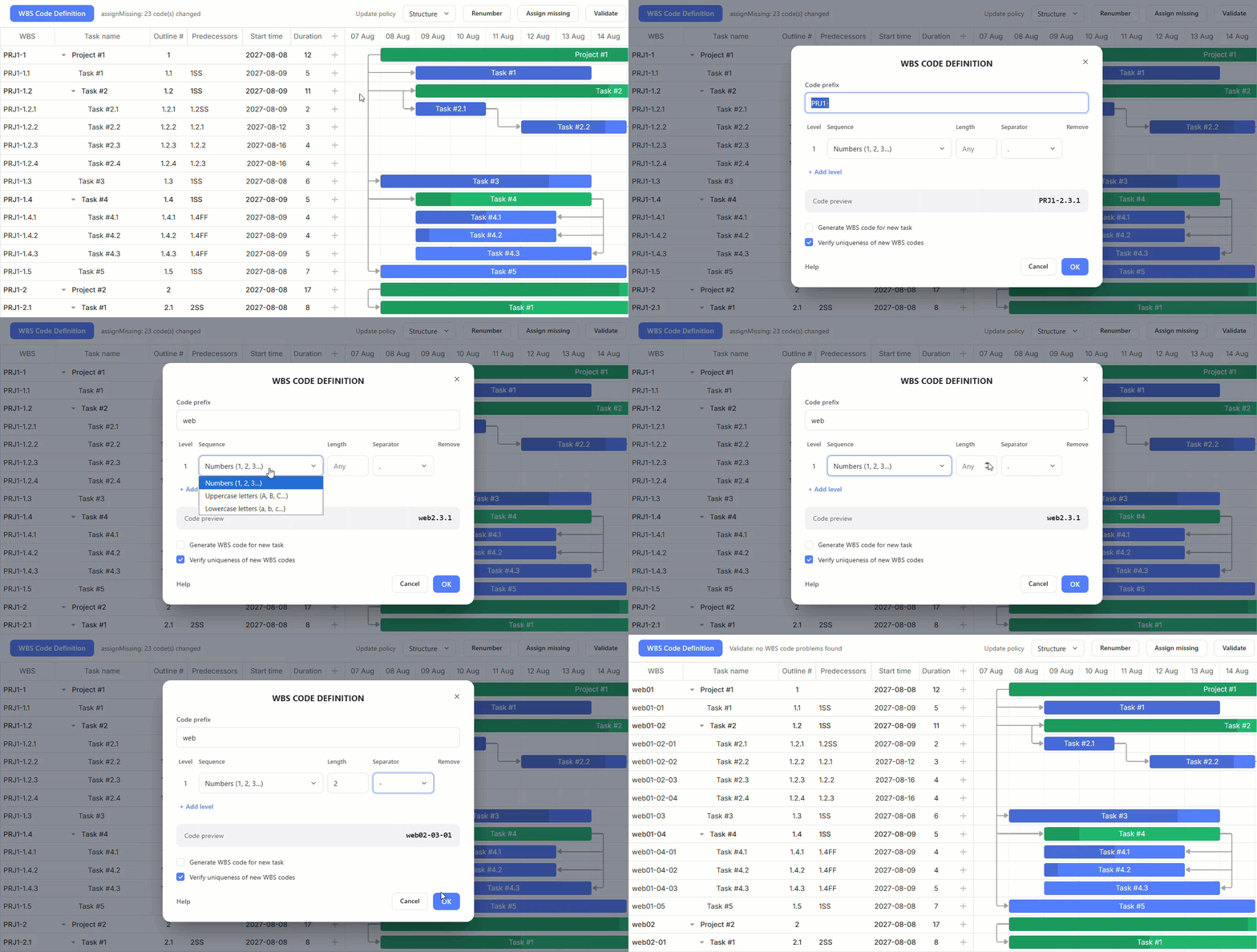
Once generated, stored codes remain tied to their respective tasks when the grid is sorted or filtered. When an operation changes several codes, Gantt reports the affected tasks so your application can save the updates.
The following code sample shows how to enable the WBS extension and generate codes for tasks that don’t have one yet:
gantt.init("gantt_here");
gantt.parse(projectData);
const result = gantt.ext.wbs.generate({ mode: "assignMissing" });
if (result.status === "applied") {
console.log("Changed codes:", result.changes);
} else {
console.log("WBS conflicts:", result.conflicts);
}
If code generation succeeds, the result lists tasks that received WBS codes. Otherwise, conflict details are provided.
DHTMLX Gantt 10.1 also introduces outline numbers and row numbers for referring to tasks based on their position in the project. An outline number, such as 1.2.3, indicates a task’s position in the project hierarchy, while a row number provides a convenient reference when specifying task predecessors in the grid. These numbers remain unchanged when users sort or filter tasks, or collapse grid branches.

However, they can be changed when the project structure is modified. The existing WBS methods remain available and continue to work as before.
The following code shows how to add both outline and row numbers to the Gantt’s grid panel:
{ name: "row_number", label: "#", template: task => gantt.getRowNumber(task) || "" },
{ name: "outline", label: "Outline", template: task => gantt.getOutlineNumber(task) },
{ name: "text", label: "Task", tree: true, width: "*" }
];
Overall, these novelties should make it much easier to identify tasks, reference their positions, and work with complex project hierarchies.
Inactive Tasks and Dependency Links
In real-world projects, things don’t always go as originally planned, and priorities may shift pretty frequently. Teams may need to temporarily put some part of the project on hold or preserve an alternative scenario without removing related data from the Gantt chart.
In DHTMLX Gantt, it is now possible thanks to the newly added inactive tasks and dependency links. Starting from v 10.1, these key Gantt chart elements can be marked as inactive. Inactive tasks and links are visually distinguished from active Gantt chart items and ignored during auto-scheduling calculations. Instead of disabling the auto-scheduling engine entirely, this approach allows maintaining the project structure while clearly indicating that specific tasks and dependencies are currently not involved in scheduling operations.
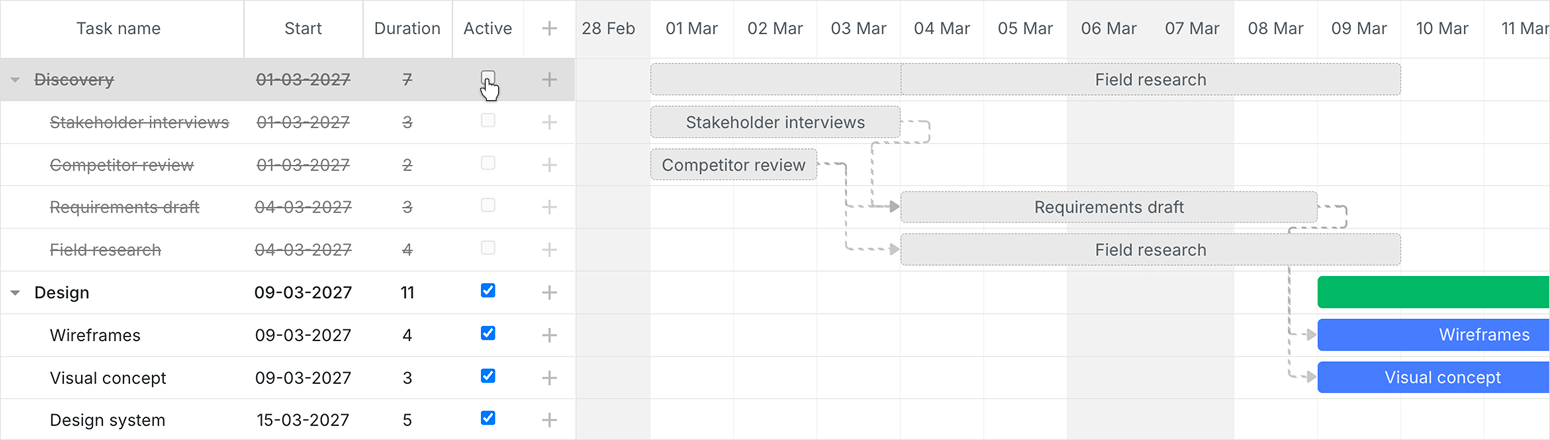
To mark an existing task or dependency link as inactive, set task.active to false and update it through the Gantt API as shown in the following code:
task.active = false;
gantt.updateTask(task.id);
const link = gantt.getLink(1);
link.active = false;
gantt.updateLink(link.id);
The IDs in this code snippet refer to tasks and links already loaded in the Gantt chart.
A dependency link is also treated as inactive whenever either of its connected tasks is inactive. The same applies to task hierarchies: when a summary task is marked as inactive, all its descendants are considered to be inactive too, but their individual settings remain unchanged. Inactive tasks are excluded when the dates of active parent summary tasks are calculated.
Predefined UI Elements for Gantt App Interface
DHTMLX Gantt is commonly used as the main functionality of project planning apps, while the surrounding UI elements have traditionally been left to development teams. Starting with v10.1, our JavaScript Gantt component is shipped together with several commonly used controls designed to reduce the amount of code developers need to write from scratch.
The first thing that will come in handy is a configurable toolbar that provides quick access to the main Gantt chart operations out of the box. It can include controls for adding a task, undoing/redoing changes, zooming, highlighting the critical path, enabling fullscreen mode, and more. The predefined toolbar structure can be extended with custom options via the Gantt API.

gantt.config.toolbar = { items: ["add_task", "|", "undo", "redo", "spacer", "fullscreen"] };
gantt.attachEvent("onToolbarItemClick", function (id, item, e) {
// handle custom items
});
If needed, it is also possible to add a fully custom toolbar and position it as desired in the Gantt interface using gantt.ext.ui.createToolbar().
Another valuable addition to the Gantt usability is the context menu control. In v10.1, it speeds up the implementation of context menus for a column header, tasks, dependency links, and empty areas of the Gantt chart. Users open the menu with a right-click, and it shows the list of actions available for the selected item.
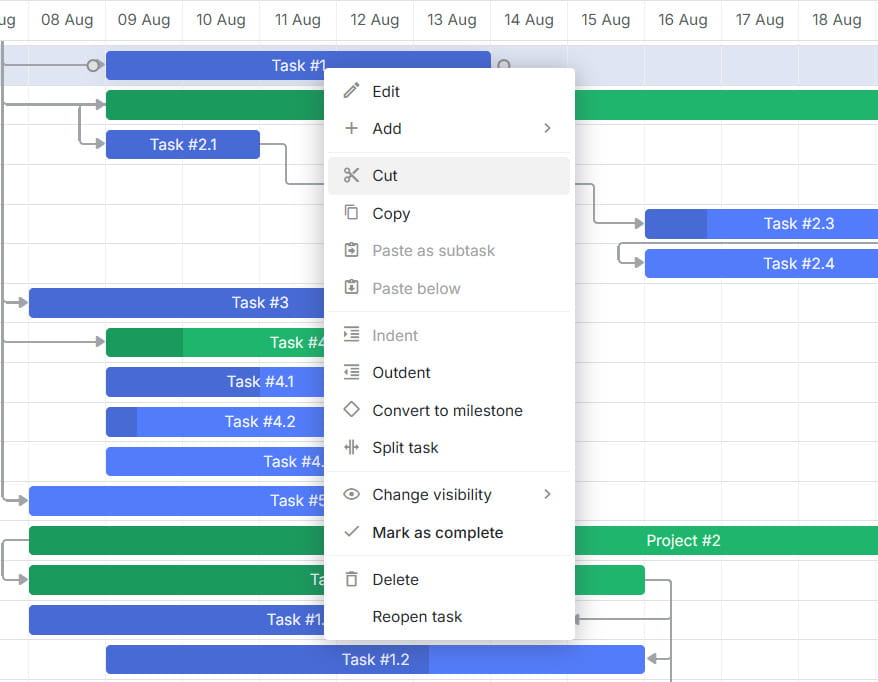
The timeline scale and the resource panel keep the browser’s own context menu.
Both the toolbar and context menu are enabled as opt-in plugins.
The release also includes a reusable set of controls (date picker, toggle, tabs, menu, etc.) for ensuring a more consistent editing experience when updating tasks via the lightbox form or introducing inline edits in the grid panel. For instance, the lightbox date field can now be implemented using a single date picker control instead of separate dropdowns for day, month, and year.
The new package of UI controls is available in both Community and PRO editions of DHTMLX Gantt.
That wraps up our overview of DHTMLX Gantt 10.1. You can find a concise summary of this substantial release in the “What’s New” section of the Gantt documentation. The migration guide provides the information for a safe transition to v10.1 from previous Gantt versions.
To gain full hands-on experience with DHTMLX Gantt 10.1, download a free 30-day trial version of the Gantt PRO edition and try all new planning capabilities in action. Current customers can obtain v10.1 in their Client’s Area.
Need to boost scheduling and resource planning capabilities in your application? Request a free 30-day trial of DHTMLX Planning Engine or get in touch with our team to discuss your requirements and find out how it can help with your project.