
When a JavaScript UI component offers smooth integrations with React and Angular, it is natural to expect a similar option for Vue.js. Today, we’re happy to take this final step toward a native-like development experience for DHTMLX Gantt across the major front-end frameworks with the release of a new Vue wrapper. It provides a thin layer on top of the existing JavaScript Gantt engine, bridging imperative chart logic with Vue’s reactivity system.
Just like the recently presented Angular wrapper, DHTMLX Vue Gantt is currently in beta. Functionally, it is ready to use, and our focus now is on collecting feedback and refining the API before it becomes stable.
Now, let’s see what the new Gantt wrapper brings in for Vue developers.
How Vue Gantt Actually Works (Core Concepts)
When working on Vue Gantt, we wanted to make it applicable for scenarios of any scale without overcomplicating things. We managed to do that. Using the wrapper, you interact with Gantt the same way you would with any other Vue component. The setup is declarative. Just pass all key settings via props to get a fully functional Gantt chart on a web page.
Here is what a minimal setup looks like:
import { ref } from "vue";
import VueGantt, {
defineGanttConfig,
defineGanttTemplates,
type SerializedLink,
type SerializedTask
} from "@dhtmlx/trial-vue-gantt";
import "@dhtmlx/trial-vue-gantt/dist/vue-gantt.css";
const tasks = ref<SerializedTask[]>([
{
id: 1,
text: "Project",
start_date: new Date(2026, 0, 5),
duration: 5,
open: true,
parent: 0
}
]);
const links = ref<SerializedLink[]>([]);
...
</script>
<template>
<div style="height:520px"
<VueGantt :tasks="tasks" :links="links" :config="config" :templates="templates" />
</div>
</template>
When it comes to data changes, you have to choose between two options as the source of truth for data synchronization. The most common approach is to use Vue state (or the Pinia library) to manage the Gantt state and update the UI via wrapper callbacks. Alternatively, the chart and backend can be made responsible for most data lifecycle operations, which is preferable for scenarios with large datasets, heavy auto-scheduling, or bulk update flows.
The synchronization process depends on the scale of changes. Small edits, like adding a link or updating a task, are diff-based. When bigger changes take place, the wrapper can switch strategy and reset/re-parse the data to keep things up to date. For features like resources or baselines, updates are synced via their own datastores.
One more noteworthy point is related to the Gantt interaction behavior. The concept for event handling is quite simple. You don’t need to wire up separate props for each action in the Gantt chart. Instead, you use a single events map that contains all the handlers you need. The wrapper automatically connects each action in the Gantt UI to the corresponding handler.
onTaskCreated: task => {
console.log(task);
return true;
},
onBeforeLightbox: id => {
console.log(id);
return true;
}
};
In addition, the Vue Gantt package also comes with a set of typed helpers and composables. They come in handy for working with reusable patterns.
Overall, the operating principles of the Vue Gantt wrapper match the way Vue apps are commonly built. Check out the complete list of available props and the details on their usage for Gantt configuration.
Customization Layers for Extending Gantt UI
DHTMLX Vue Gantt is quite flexible when it is necessary to modify the look and feel of the default UI. The wrapper offers a range of customization layers for adjusting the Gantt chart to specific project needs. Here, you can go from small visual tweaks to deep behavioral customizations.
The wrapper extends Gantt’s template system. Any template function can return a Vue VNode created with h(), making it possible to render Vue components directly in timeline bars, the grid cells, scale cells, or tooltips.
import TaskTextBadge from "./components/TaskTextBadge.vue";
import DoneToggleButton from "./components/DoneToggleButton.vue";
import FilterDropdown from "./components/FilterDropdown.vue";
// Vue component inside a timeline template
const templates = {
task_text: (_start, _end, task) =>
h(TaskTextBadge, {
task,
onToggle: () => toggleCompleted(task.id)
})
} as any;
// Vue components inside a grid column template and header label
const config = {
columns: [
{
name: "text",
tree: true,
width: 220
},
{
name: "status",
width: 180,
label: h(FilterDropdown, {
modelValue: filterMode.value,
"onUpdate:modelValue": setFilterMode
}),
template: task =>
h(DoneToggleButton, {
done: Boolean(task.completed),
onToggle: () => toggleCompleted(task.id)
})
}
]
};
In the example above, this apporach works in three places:
- timeline templates (task_text, tooltip_text, scale and cell templates),
- grid body cells (column.template),
- grid header cells (column.label).
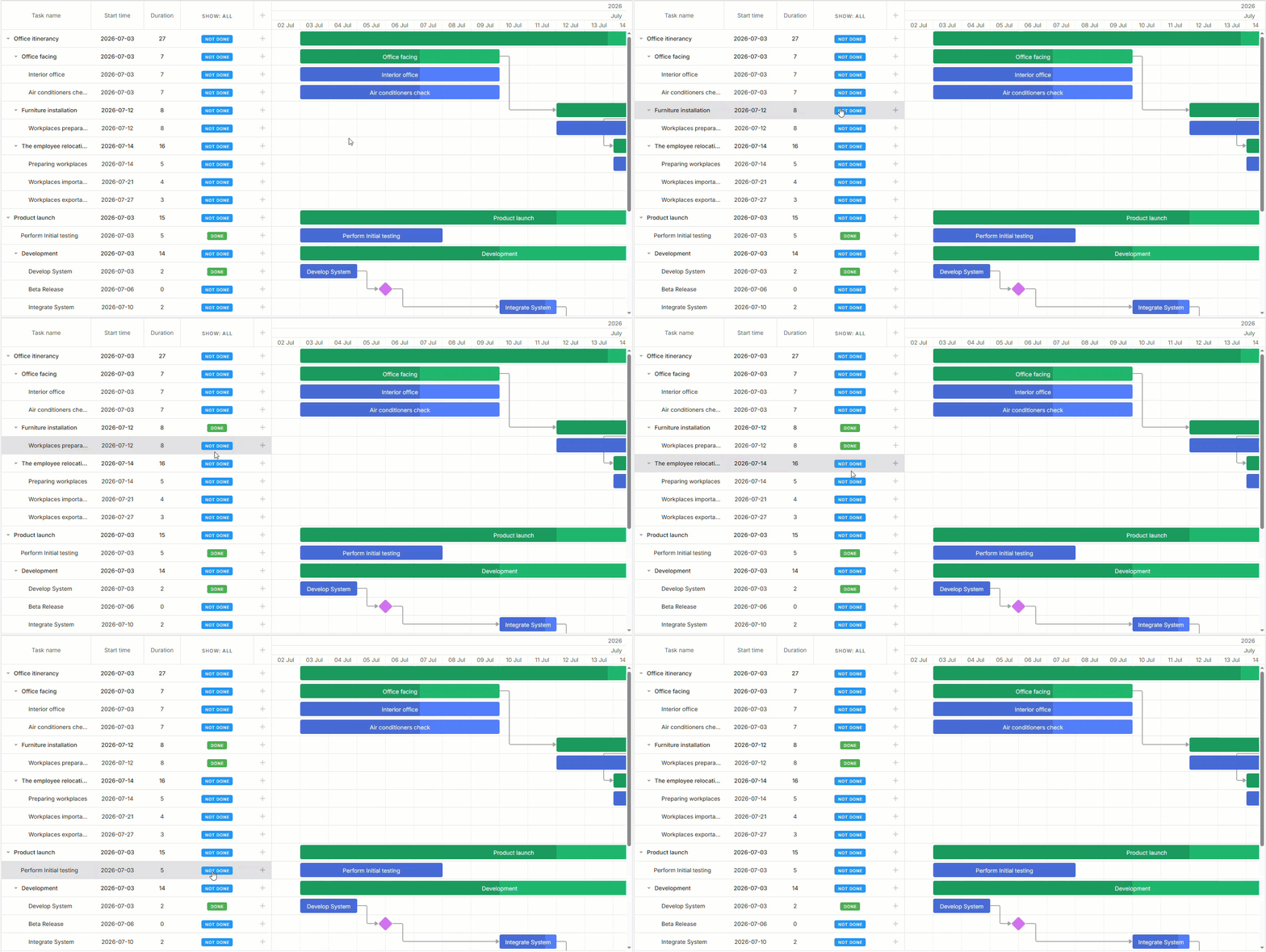
For simple visual tweaks (task text, CSS classes, scale labels), templates can still return plain strings, the same as the native Gantt template API:
task_text: (_start, _end, task) => `#${task.id}: ${task.text}`,
task_class: (_start, _end, task) =>
task.priority === "high" ? "task--high" : ""
});
Also, you can replace the predefined task edit form (lightbox) with the Vue component (customLightbox):
import CustomLightbox from "./CustomLightbox.vue";
const { tasks, links, data } = useDemoBatchState(createProjectData());
</script>
<template>
<section class="demo-panel" data-cy="custom-form-demo">
<VueGantt
class="demo-gantt"
:tasks="tasks"
:links="links"
:customLightbox="CustomLightbox"
:data="data"
/>
</section>
</template>
The same approach is applied for grid cell editors. If a particular editor does not meet your requirements, just add the new one with the inlineEditors hook.
<script setup lang="ts">
…
import DateEditor from "./editors/DateEditor.vue";
import DurationEditor from "./editors/DurationEditor.vue";
import TextEditor from "./editors/TextEditor.vue";
const inlineEditors = {
TextEditor,
DurationEditor,
DateEditor
};
…
</script>
<template>
<section class="demo-panel" data-cy="inline-editors-demo">
<VueGantt
class="demo-gantt"
:tasks="tasks"
:links="links"
:config="config"
:inlineEditors="inlineEditors"
:data="data"
/>
</section>
</template>
```
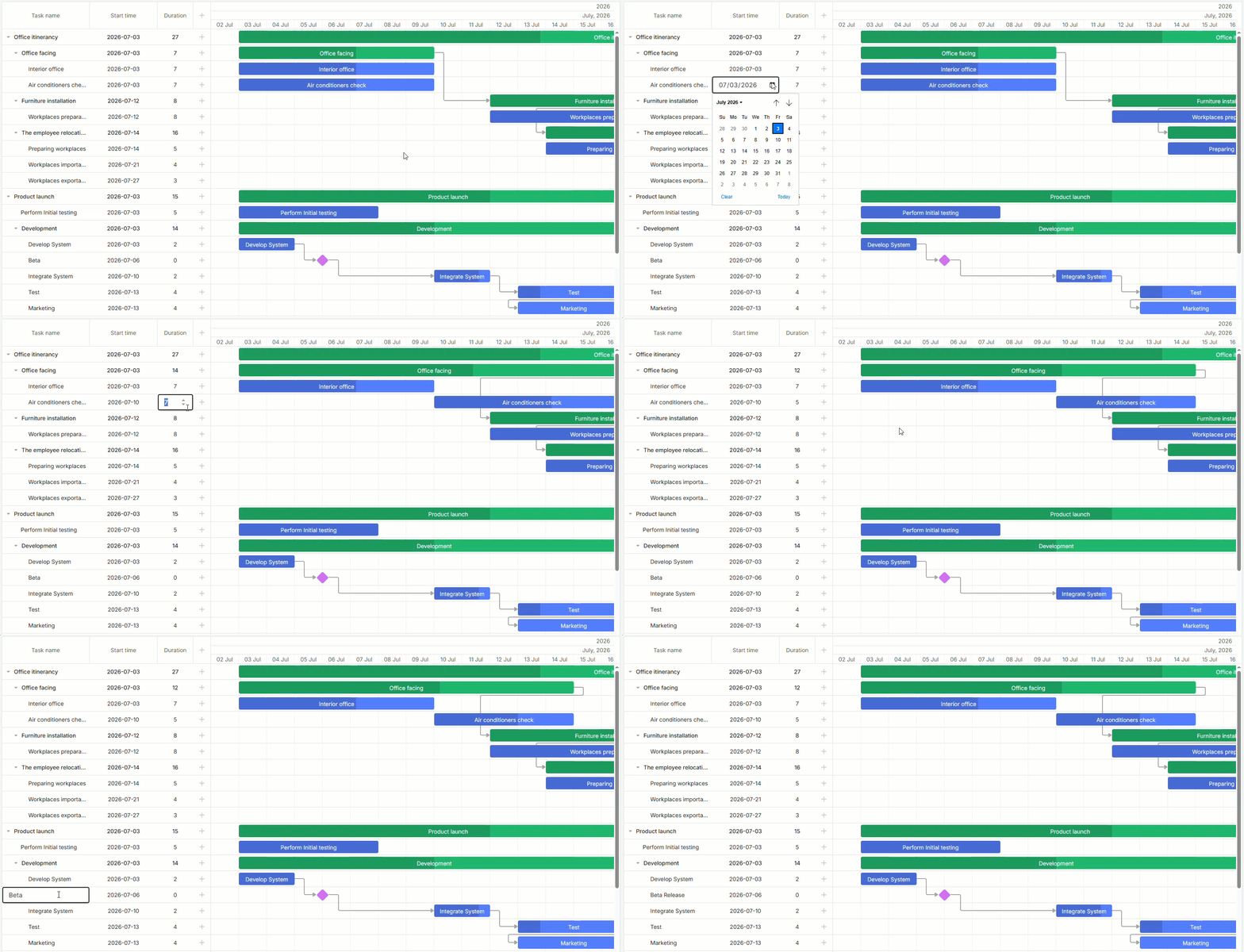
The props-driven approach is also used to add more complex Gantt features such as grouping, resource filters, markers, and working calendars.
Take a closer look at all these Gantt customization patterns in the documentation.
When and How to Access the Gantt Instance Directly
A lot of things in Vue Gantt are configured declaratively using props and hooks. At the same time, the wrapper does not hide the original Gantt instance. Therefore, some features are simply easier to configure through the API directly. Specifically, it works well with lesser-known methods and very distinctive UI behavior patterns.
One way to access it is the @ready hook. It fires once the chart is initialized and the initial dataset is already rendered:
When the instance should be accessed later during the component lifecycle, rather than only at startup, you can do it through the component ref:
import type { VueGanttRef } from "@dhtmlx/trial-vue-gantt";
const ganttRef = ref<VueGanttRef | null>(null);
function showToday() {
ganttRef.value?.instance?.showDate(new Date());
}
Thus, you get access to the full Gantt API to configure the chart as desired.
One thing to keep in mind: when modifying tasks and links via the Gantt API, these changes must be reflected in the external state. If not, they can be lost after the subsequent prop updates.
Now, when you are familiar with the main conceptual foundations of DHTMLX Vue Gantt, you can proceed to the practical application of the wrapper.
Get Ready to Start
DHTMLX Vue Gantt is built for the modern Vue ecosystem and supports the latest generation of the framework (Vue 3). To give it a proper try, you need to install the evaluation version from npm:
Alternatively, you can download a standard 30-day trial version from our website, which also includes free tech support during the trial period. The “Quick Start” guide will help you quickly create a basic Vue app with the embedded Gantt chart using the trial version. As a bonus, there is also a complete GitHub project based on this guide.
If you decide that our Vue Gantt is the right tool for your project, you can switch from the trial package to the commercial one specifically intended for production use. All installation details are provided in the corresponding documentation section.
For those who prefer working directly with DHTMLX JavaScript Gantt, it is possible to use it in Vue apps by following the low-level integration guide.