
Today, we are delighted to announce the highly anticipated release of DHTMLX Spreadsheet 6.0. In this iteration, we take a major step toward modern React development workflows by introducing the React Spreadsheet wrapper. This novelty enables you to add the time-tested JavaScript Spreadsheet functionality to React apps in a familiar, declarative way. The wrapper covers all major spreadsheet capabilities and, when needed, provides direct access to the native API, which also received useful updates. Specifically, v6.0 adds support for custom formulas, requested conditional aggregate functions, scientific notation, flexible font-size settings, and JSDoc annotations.
Now, let us delve into the details.
What You Get with React Spreadsheet
React is still considered an industry standard for building modern business apps, thanks to its component-based architecture and scalability, while Excel-like spreadsheets remain relevant for data analysis. The new DHTMLX wrapper helps development teams address both these needs. It is designed to work seamlessly with modern React (18 and later versions) and follows the main React principles, making it easier to configure a powerful spreadsheet via props.
Here is a basic setup that shows how to import and render a basic spreadsheet table in React:
import { ReactSpreadsheet, type SheetData } from "@dhtmlx/trial-react-spreadsheet";
import "@dhtmlx/trial-react-spreadsheet/spreadsheet.react.css";
function App() {
const [sheets] = useState<SheetData[]>([
{
id: "sheet1",
name: "Sales",
cells: {
A1: { value: "Product", css: "bold" },
B1: { value: "Revenue", css: "bold", format: "currency" },
A2: { value: "Widget" },
B2: { value: 15000, format: "currency" },
},
},
]);
const styles = {
bold: { "font-weight": "bold" },
};
return <ReactSpreadsheet sheets={sheets} styles={styles} activeSheet="sheet1" />;
}
Under the hood, all spreadsheet data is organized via the sheets prop, which acts as the single source of truth. In the example above, this prop is used to specify a single sheet and formatted cells.
Using props, you can extend the spreadsheet with other popular features available in DHTMLX Spreadsheet: multiple sheets, predefined formulas, number formatting, themes, localization, data manipulations, and more.
Props describe the UI state. So when they are updated, the wrapper synchronizes the underlying widget accordingly. Props differ in update behavior. Check the documentation to learn how props are categorized by this criterion and gain a deeper understanding of state management in the React Spreadsheet.
The wrapper also provides typed event callbacks (like onAfterAction shown below) to respond to user interactions.
sheets={sheets}
onAfterAction={(action, config) => {
console.log("Action:", action, "Cell:", config.cell);
}}
/>
If the spreadsheet table’s default configuration does not meet your needs, you can customize any UI elements (toolbar, context menu, search bar, etc.). For example, if you need to display the toolbar with a specific set of controls, you need to pass an array of block identifiers to toolbarBlocks, as shown below:
sheets={sheets}
toolbarBlocks={["undo", "colors", "decoration", "align", "format"]}
/>
While most of the spreadsheet UI is configured via declarative props, some features are better handled via an imperative approach. For such cases, the wrapper allows accessing the underlying Spreadsheet API via SpreadsheetRef:
import { ReactSpreadsheet, type SpreadsheetRef } from "@dhtmlx/trial-react-spreadsheet";
function App() {
const ref = useRef<SpreadsheetRef>(null);
const handleExport = () => {
const data = ref.current?.instance?.serialize();
console.log(data);
};
const handleUndo = () => {
ref.current?.instance?.undo();
};
return (
<>
<button onClick={handleExport}>Export</button>
<button onClick={handleUndo}>Undo</button>
<ReactSpreadsheet ref={ref} sheets={[]} />
</>
);
}
It works well for serializing data, triggering undo/redo operations, or managing selections programmatically.
How to Get and Where to Start
The first thing to mention is that the React Spreadsheet wrapper will be a free addition to the DHTMLX JS Spreadsheet distributed under Commercial, Enterprise, and Ultimate licenses.
After reading the information above, you should have a general understanding of the wrapper and its working principles. Now, you can move from theory to practice. To try DHTMLX React Spreadsheet in action absolutely free of charge, you have two options on npm:
- evaluation version on public npm (no additional configuration required)
- evaluation version on private npm
This option implies pre-configuration:
And subsequent installation:
The latter approach is applied for accessing the commercial version on npm:
npm install @dhx/react-spreadsheet
For more information, check the installation guide.
The “Quick start” tutorial provides clear step-by-step instructions for creating a basic app with DHTMLX React Spreadsheet. To make this process even more understandable, here is a working demo on GitHub.
It is time to switch to other Spreadsheet novelties included in v6.0, which will be available for both JavaScript and React versions.
Calculation Engine with New Math Functions and Custom Options
In v6.0, our team also focused on improving the area that distinguishes spreadsheets from other data management tools, like a grid table, namely, the ability to perform calculations of any complexity level. Our already solid collection of predefined formulas has been expanded with new options.
From now on, you can use popular conditional aggregate functions such as COUNTIF, COUNTIFS, SUMIF, SUMIFS, AVERAGEIF, AVERAGEIFS, MAXIFS, and MINIFS. They can be very helpful for simplifying criteria-based calculations for reporting, analytics, financial summaries, and KPIs.
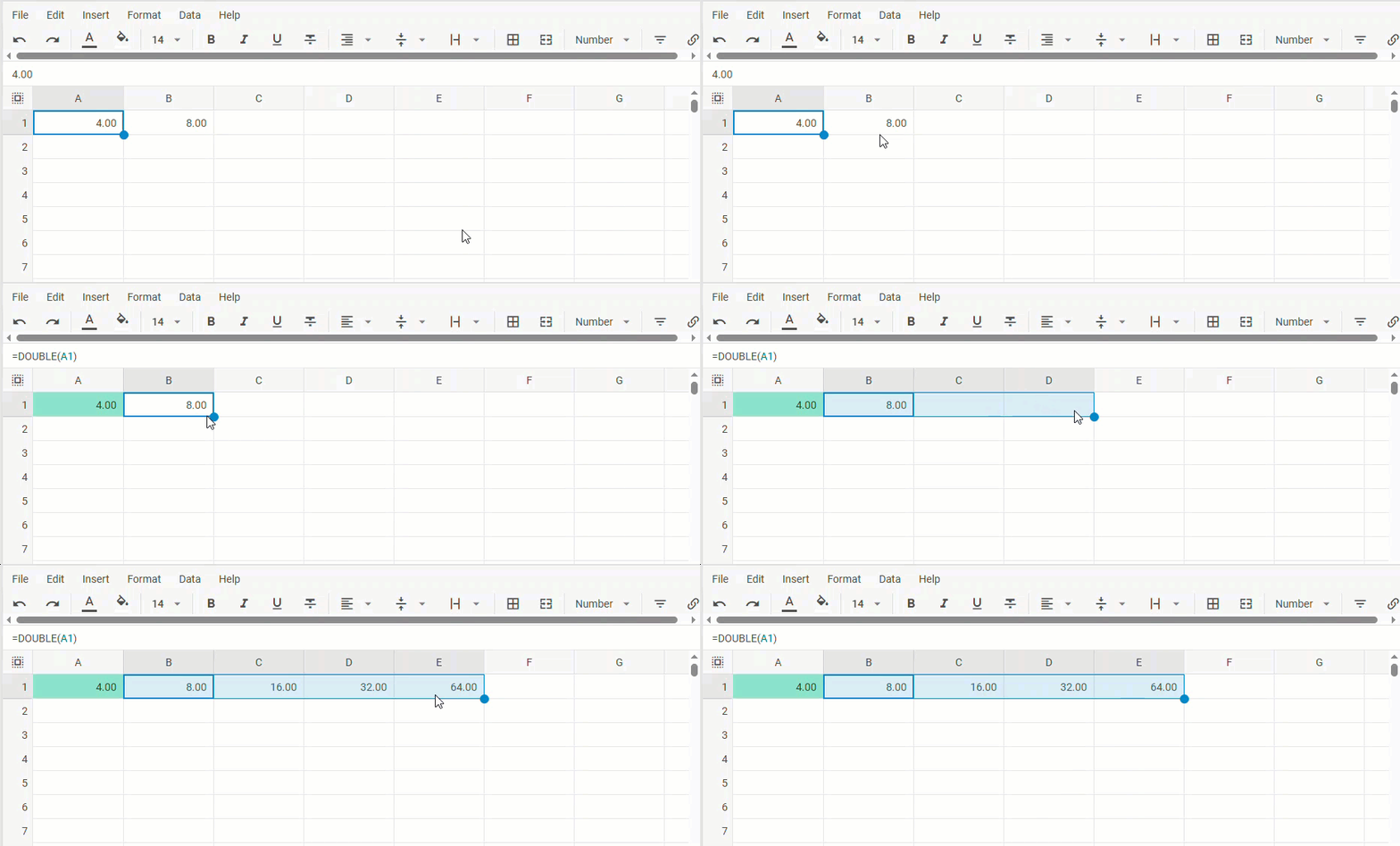
But even if you cannot find the right solution for your scenario among the available options, this is not a problem anymore. The updated DHTMLX Spreadsheet allows registering custom formulas via the new addFormula() method. In this method, you specify the name of a new formula and a synchronous callback function that processes cell values and returns the result. Here is a basic example of creating a custom formula:
return value * 2;
});
Afterwards, it becomes another option at your disposal and is called by its uppercase name in any spreadsheet cell.
{ cell: "A1", value: 4, format:"number" },
{ cell: "B1", value: "=DOUBLE(A1)", format:"number" }
]);
New Formatting Option for Extreme Numeric Values
When spreadsheet tables are used for complex calculations in science, engineering, or statistical analysis, users often have to deal with very small or very large numbers. Presenting such values in full size is possible, but it often clutters the layout and affects readability. That is why we extended the list of supported numeric formats with scientific (exponential) notation. Added as a new default option, it offers a standardized way for a compact representation of extreme numeric values in spreadsheet cells.
For instance, scientific notation allows displaying 12,300,000,000 as 1.23E+10. Programmatically, the new format is specified as a parameter (“scientific”) of the setFormat() method and uses the mask 0.00E+00:
c
The updated API allows you to go even further and set up a custom option with a different mask using the <strong>formats</strong> property, where the list of formats is defined. For instance, if you apply the mask like <strong>0.###E+0</strong> to get a more compact output:
<code lang="javascript">
const spreadsheet = new dhx.Spreadsheet("spreadsheet_container", {
formats: [
{ id: "scientific_compact", mask: "0.###E+0", name: "Scientific (compact)", example: "1.5E+3" }
]
});
Small UX Enhancements
DHTMLX Spreadsheet 6.0 includes a couple of handy usability improvements to toolbar content formatting. Now, it is possible to configure a default font size in the toolbar via the corresponding control and rearrange the entire list of available fonts by adding custom ones. To do the latter, you simply replace the default fonts with your own values, which will be shown in the toolbar’s font-size menu:
const spreadsheet = new dhx.Spreadsheet("spreadsheet_container", {
// configuration options
});
spreadsheet.toolbar.data.removeAll("font-size");
spreadsheet.toolbar.data.add(
FONT_SIZES.map(size => ({ value: size, id: `font-size-${size}` })),
-1,
"font-size"
);
spreadsheet.parse(dataset);
Improved Developer Experience
Finally, we want to mention that the Spreadsheet API now supports JSDoc annotations. This addition makes it more convenient to work with the component via IDEs. From now on, you don’t need to leave the code editor to see method descriptions, parameter types, and code snippets. Just hover over the required item, and the extra info will pop up on the display.
This concludes the review of all the novelties included in DHTMLX Spreadsheet 6.0. If needed, you can refresh your memory on this major update and continue exploring it in more detail by visiting the “What’s New” section. Also, take time to get acquainted with the migration notes to v6.0.
Only practice shows the true value of any new feature, so we encourage you to download a free 30-day trial version of DHTMLX Spreadsheet and see how they fit your projects. Current customers can access v6.0 via their Client’s Area.