
As AI becomes part of everyday development workflows, more teams are looking for practical patterns rather than generic chatbots. One recurring challenge is turning free-text requests into safe configuration changes for complex UI components. DHTMLX Gantt is a good example: it offers many configuration options and theme variables, but tuning them manually can be slow when you just want to try different layouts or visual styles.
As a solution, it is possible to add a thin AI layer that accepts specific instructions (prompts) in plain English and converts them into structured configuration updates. The main idea here is to keep the configuration surface small and controlled, while the AI model handles the mapping from natural language to JSON. In this tutorial, you will learn how to add such a smart design assistant to an existing DHTMLX-based JS Gantt chart without rewriting the entire UI.
Overview of DHTMLX Demo: Structure and Workflow
Our tutorial is based on the ready-made AI Gantt Theme Builder demo delivered by the DHTMLX team.
The UI structure of this demo app includes two interactive panels:
- The Gantt chart with uploaded project data on the left.
- The Chat panel with the Chat and Code tabs on the right.
This intuitive user interface allows end-users to showcase their UI design skills by sending prompts in plain English to the AI Assistant (Chatbot) rather than manual coding.
For instance, you can request a new theme with a warm color palette (orange, beige, soft red), make links thicker, and increase the row height.
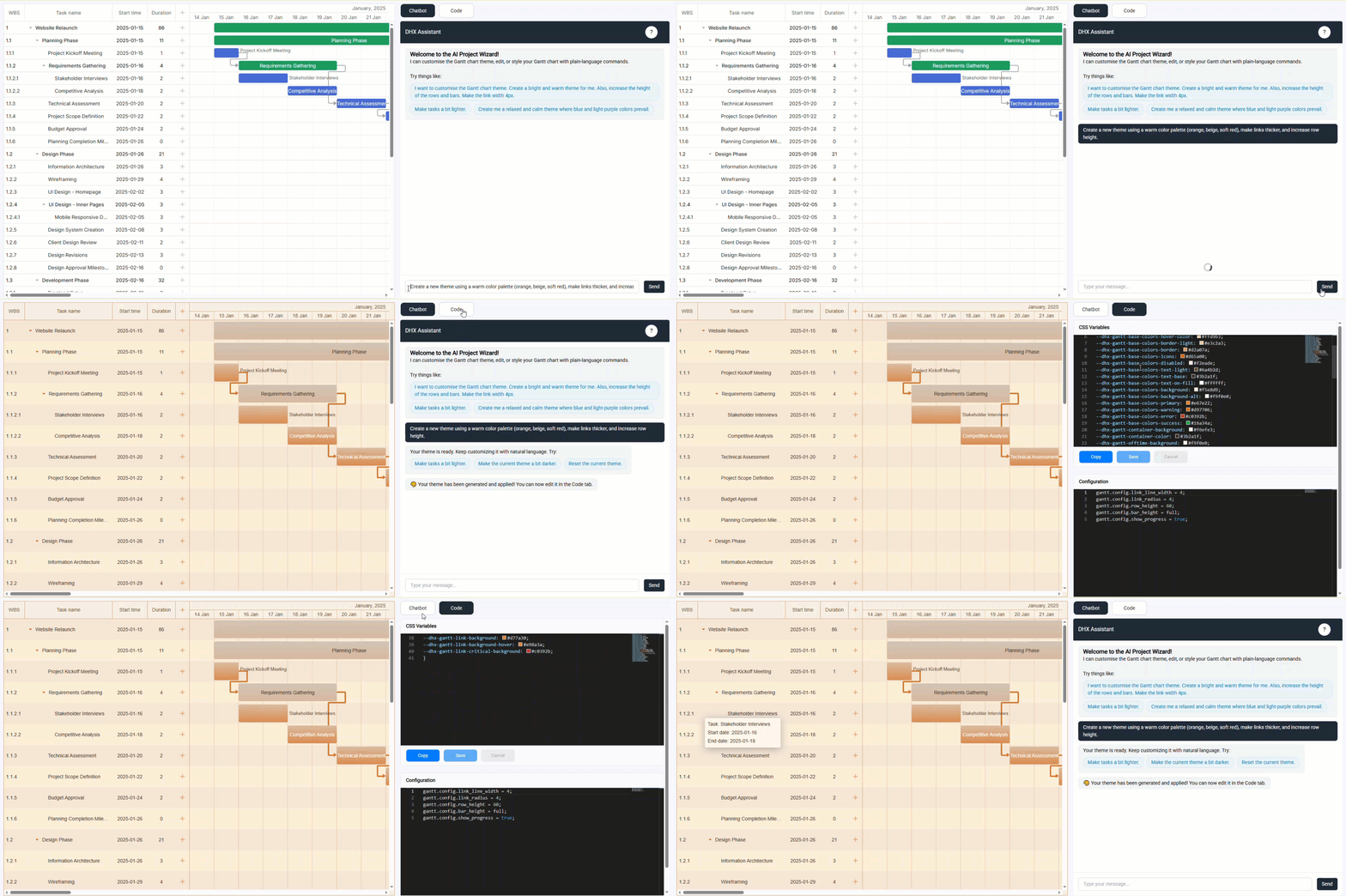
The full demo project and technology stack details are provided in the GitHub repository.
Let us explain the workflow in the example above step by step:
- The user sends a request (prompt) with the desired Gantt theme/configuration via the Chat tab.
- The frontend passes this message to the backend, where it is analyzed and prepared for the AI service (LLM).
- The backend forwards the user request to the LLM for creating the new configuration based on the allowed functions.
- The LLM returns a structured JSON configuration, which includes a set of custom CSS variables and configuration settings.
- The frontend applies new parameters and updates the Gantt chart.
Technically, the most curious part of this workflow, namely the transformation of user prompts into actionable code, is performed via OpenAI API or a compatible service, supporting the function-calling (tool-calling) feature.
Are you ready to learn the implementation details of this core feature and other peculiarities required for your own AI Gantt Theme Builder?
Let us explore everything in its due order.
Setting Up AI-Ready User Interface
In this section, we’ll walk through initializing the Gantt component, configuring the AI Assistant panel, and transmitting user prompts to the backend.
Gantt Chart Initialization and Its Styling Peculiarities
First, you need to add a Gantt chart to a web page. To do that, you initialize the DHTMLX JavaScript Gantt component and configure columns, plugins, and helper functions (main.js):
gantt.config.columns = [
{ name: 'wbs', label: 'WBS', width: 60, resize: true, template: gantt.getWBSCode },
{ name: 'text', label: 'Task name', tree: true, width: 250, resize: true },
{ name: 'start_date', align: 'center', width: 100, resize: true },
{ name: 'duration', align: 'center', width: 80, resize: true },
{ name: 'add', width: 40 },
];
gantt.plugins({
auto_scheduling: true,
undo: true,
export_api: true,
marker: true,
tooltip: true,
});
gantt.config.auto_scheduling = true;
gantt.config.open_tree_initially = true;
gantt.config.auto_types = true;
gantt.config.scale_height = 60;
gantt.config.link_radius = 4;
initZoom(gantt);
fitTaskText(gantt);
As for the Gantt appearance, we should mention that this part of the Gantt configuration is dynamically controlled by CSS variables (colors, fonts, etc.) and the gantt.config object (row/task height, link width, etc.). Therefore, AI-generated updates can be applied instantly.
The AI Gantt Theme Builder maintains the current state of both the theme and configuration. When a new theme is applied via the AI assistant, it is merged with the previous one, preserving all previous changes.
Note: Currently, we are working on a temporary storage system (messages), which will enable the conversation history feature. It will store user messages, LLM responses, and the results of tool calls.
Assistant Panel: Chat and Code Tabs
As stated above, the AI assistant of our demo includes Chat and Code tabs. The Chat tab serves for natural language communication between users and the AI service. It is based on a simple chat widget that can be added to your project in the following way:
// Initialize the chat widget with dependencies
export const initChat = ({ socket, runCommand, getTheme, getConfigs }) => {
// Create and set up the chat UI
const chatWidgetContainer = document.querySelector('#chat-tab');
chatWidgetContainer.dataset.id = '0';
chatWidgetContainer.innerHTML = `
<div id="chat-popup" class="relative left-0 bottom-0 h-full w-full bg-white rounded-md shadow-md flex flex-col transition-all">
<div id="chat-header" class="flex justify-between items-center p-4 bg-gray-800 text-white rounded-t-md">
<h3 class="m-0 text-lg">DHX Assistant</h3>
<button data-micromodal-trigger="modal-1" class="help-btn">?</button>
</div>
<div id="chat-messages" class="flex-1 p-4 overflow-y-auto text-base"></div>
<div id="loader" class="hidden justify-start mb-3">
<div class="spinner m-auto"></div>
</div>
<div id="chat-input-container" class="p-4 border-t border-gray-200">
<div class="flex space-x-4 items-center">
<input type="text" id="chat-input" class="flex-1 border border-gray-300 rounded-md px-4 py-2 outline-none w-3/4" placeholder="Type your message...">
<button id="chat-submit" class="bg-gray-800 text-white rounded-md px-4 py-2 cursor-pointer">Send</button>
</div>
</div>
</div>
`;
...
The complete chat widget configuration is provided in the corresponding file of our demo repository.
Apart from sending user prompts and displaying AI messages, the AI Assistant also provides suggestions and guidance for further actions.
The Code tab is used after desired styling changes are applied to the Gantt chart. It allows reviewing and manually modifying generated CSS variables and config values using the corresponding editors. These editors are added and controlled via the ThemeManager object:
this.initCssEditor();
this.initConfigEditor();
}
initCssEditor() {
require.config({ paths: { vs: "https://cdn.jsdelivr.net/npm/monaco-editor@0.34.1/min/vs" } });
require(["vs/editor/editor.main"], () => {
this.cssEditor = monaco.editor.create(document.getElementById("css-editor-container"), {
value: this.originalThemeCSS,
language: "css",
theme: "vs-dark",
automaticLayout: true,
readOnly: false,
});
this.setupEditorEvents(this.cssEditor, "css");
});
}
initConfigEditor() {
require.config({ paths: { vs: "https://cdn.jsdelivr.net/npm/monaco-editor@0.34.1/min/vs" } });
require(["vs/editor/editor.main"], () => {
this.configEditor = monaco.editor.create(document.getElementById("config-editor-container"), {
value: this.originalThemeConfigs,
language: "javascript",
theme: "vs-dark",
automaticLayout: true,
readOnly: false,
});
this.setupEditorEvents(this.configEditor, "config");
});
}
The ThemeManager stores the initial and modified code (CSS + configuration), and updates styles in real time:
editor.onDidChangeModelContent(() => {
const value = editor.getValue();
this[`editedTheme${type === "css" ? "CSS" : "Configs"}`] = value;
this.updateButtonsState(type);
this.applyThemeOnFly();
});
document.querySelector(`[data-editor="${type}"].copy-editor-btn`).addEventListener("click", () => {
this.copyContent(type);
});
document.querySelector(`[data-editor="${type}"].save-editor-btn`).addEventListener("click", () => {
this.saveChanges(type);
});
document.querySelector(`[data-editor="${type}"].cancel-editor-btn`).addEventListener("click", () => {
this.cancelChanges(type);
});
}
It also processes the “Save”, “Cancel”, and “Copy” actions, sending changes back through the runCommand when saved.
Sending User Prompt to the Backend
Once the user enters the prompt with the desired styling changes and clicks on the “Send” button, it is necessary to send the message to the backend via Websocket. This connection is established using the Socket.IO library:
const socket = io(SOCKET_URL);
Here is how the user prompt and the current Gantt settings are transmitted to the backend:
displayUser(message);
const payload = {
message,
theme: getTheme(), // sends current theme state
configs: getConfigs(), // sends current config state
};
socket.emit('user_msg', JSON.stringify(payload)); // sends the payload to the backend via WebSocket
}
Now, it is the backend’s turn to process the prompt, instruct the AI on the required styling changes, and send back the response.
Preparing the Backend for AI Commands
The backend is a centerpiece of the DHTMLX Gantt Theme Builder, which combines the chatbot, AI model, and Gantt chart into a single and coherent system under the hood. If you want to implement a similar backend for your AI Gantt Theme Builder, it should be able to perform the operations described below.
Providing the AI Model with Valid Styling Instructions
The backend defines a set of operations (i.e., tool functions) that the AI model can apply for generating new styling settings for the Gantt chart. These functions are defined in a JSON schema and exposed to the AI model through OpenAI’s function-calling. Each function has strict input parameters, ensuring that the AI produces only valid and safe updates for the Gantt chart.
In our case, there are two available tool functions with corresponding schema fragments:
- set_theme – a primary mechanism for updating the visual style and layout configuration of the Gantt chart.
name: "set_theme",
parameters: {
type: "object",
properties: {
variables: {
type: "array",
items: { key: "string", value: "string" }
},
configs: {
type: "array",
items: { name: "string", value: ["number", "boolean"] }
}
}
}
}
- reset_theme – clears all custom CSS variables and restores defaults for all configuration settings.
type: "function",
function: {
name: "reset_theme",
description: "Reset the current Gantt theme by clearing all custom CSS variables and configs (back to defaults).",
parameters: {
type: "object",
properties: {},
required: [],
},
},
},
The full schema description of available functions can be found in the schemaList.js file of our official demo.
Contextualizing User Prompt
Before sending a request to the LLM, the backend generates a structured system context (prompt) including:
- descriptions of all available CSS theme variables;
- full list of gantt.config options;
- current theme (all CSS variables) and configs;
- rules instructing the model how to modify them safely.
The system prompt is created using the generateSystemPrompt function. The final request assembled in the talkToLLM function:
const messages = [
{ role: "system", content: generateSystemPrompt(theme, configs) },
{ role: "user", content: request },
];
const res = await openai.chat.completions.create({
model: "gpt-5-nano",
messages,
tools: schemaList,
});
```
Returning Structured LLM Responses
The AI model (LLM) returns a structured response that may contain the following:
- a regular assistant message (does not request any action)
- a tool call (structured instructions), if the Gantt chart appearance must be changed:
"tool": "set_theme",
"variables": [
{ "key": "--dhx-gantt-task-background", "value": "#dce8ff" },
{ "key": "--dhx-gantt-grid-background", "value": "#f9fbff" }
],
"configs": [
{ "name": "row_height", "value": 42 }
]
}
If the response contains a tool call, the backend serializes and sends it to the frontend inside a tool_call WebSocket event.
Applying AI-Generated Changes to the Gantt Chart
The frontend must receive the event (instructions) from the backend and apply the corresponding changes to the Gantt chart. This section explains how incoming AI commands are dispatched and executed in the browser.
First, the event listener receives the tool_call event and extracts the AI-generated command:
socket.on("tool_call", (callJSON) => {
const { cmd, params } = JSON.parse(callJSON);
runCommand(cmd, params);
});
```
Then, the AI’s instructions are executed with the command runner (runCommand function). Here is an example of the command dispatching:
// handlers for commands defined in /backend/schemaList.js
return function runCommand(cmd, args) {
switch (cmd) {
case "reset_theme":
const themeStyleId = "dynamic-theme";
const styleEl = document.getElementById(themeStyleId);
if (styleEl) {
styleEl.remove();
}
if (onThemeSet) {
onThemeSet([], cmd);
}
if (onConfigSet) {
onConfigSet([], cmd);
if (defaultConfigValues.length) {
defaultConfigValues.forEach((config) => {
gantt.config[config.name] = config.value;
});
}
gantt.render();
}
break;
// ... other commands
default:
console.warn("Unknown cmd:", cmd, args);
}
};
}
As a result, the Gantt appearance is updated to reflect the requested theme or configuration changes.
This concludes the main instructions for implementing your AI Gantt Theme Builder. For more information, check out the official GitHub repository of our demo project.
Possible Improvements
The DHTMLX AI Gantt Theme Builder is a demo project with simplified business logic. But it can be a good foundation for a production-ready solution. If you followed our instructions and created a similar system, you should be aware of several aspects that can be further improved and refined:
- Our demo has no strict schema/whitelist validation on the backend or frontend. It is reasonable to add validation of CSS variable names, range checking for numerical values, and type checking for configuration parameters.
- There is no robust mechanism for handling vague or ambiguous user requests. You could implement a confirmation step for potentially ambiguous changes.
- Each system prompt received by the LLM includes only the latest Gantt state and user request, limiting interaction capabilities with AI. To address this issue, you need to add conversation history support.
- Other potential enhancements: preview mode, collaborative editing, export options for theme packages, more advanced chat widget with voice input and file upload.
These enhancements can help transform your AI Gantt Theme Builder into a comprehensive environment for AI-assisted visualization and configuration management of complex Gantt interfaces.
Wrapping Up
In this tutorial, you’ve learned how to create an AI-assisted Gantt Theme Builder that reacts to natural-language prompts and applies visual changes in DHTMLX-based Gantt charts. This solution can be extended with validation, smarter ambiguity handling, and other AI-powered capabilities as your needs grow. The same pattern (natural language → structured JSON → UI update) can be used for other scenarios, such as switching calendars, toggling auto-scheduling modes, or applying predefined configuration presets.