
Today, many organisations have complex structures with multiple levels of management, varied reporting lines, and roles that often overlap or change over time. Organisational charts (or simply org charts) visualise such structures, providing a clear chain of command, responsibilities, and the overall structure of departments and teams. DHTMLX Diagram offers a dedicated org chart mode specifically designed to display such hierarchical structures on web pages. But you can go further and complement DHTMLX Diagram with AI to generate interactive org charts using commands in plain English.
In this tutorial, we provide step-by-step instructions for creating your own AI Org Chart Builder using DHTMLX Diagram and AI services.
What to Expect from AI Org Chart Builder
The AI Org Chart Builder is the latest addition to the list of DHTMLX AI demos. It turns a text description of your team into a clear, interactive diagram. Instead of manually creating charts, you can just write or paste your organisational info, and the system does the rest.
For instance, you can ask the Org Chart Builder to create an org chart for a dental clinic with a Clinic Manager overseeing Therapeutic, Orthodontics, Oral Surgery, Dental Hygiene, and Administrative departments, along with their corresponding staff.
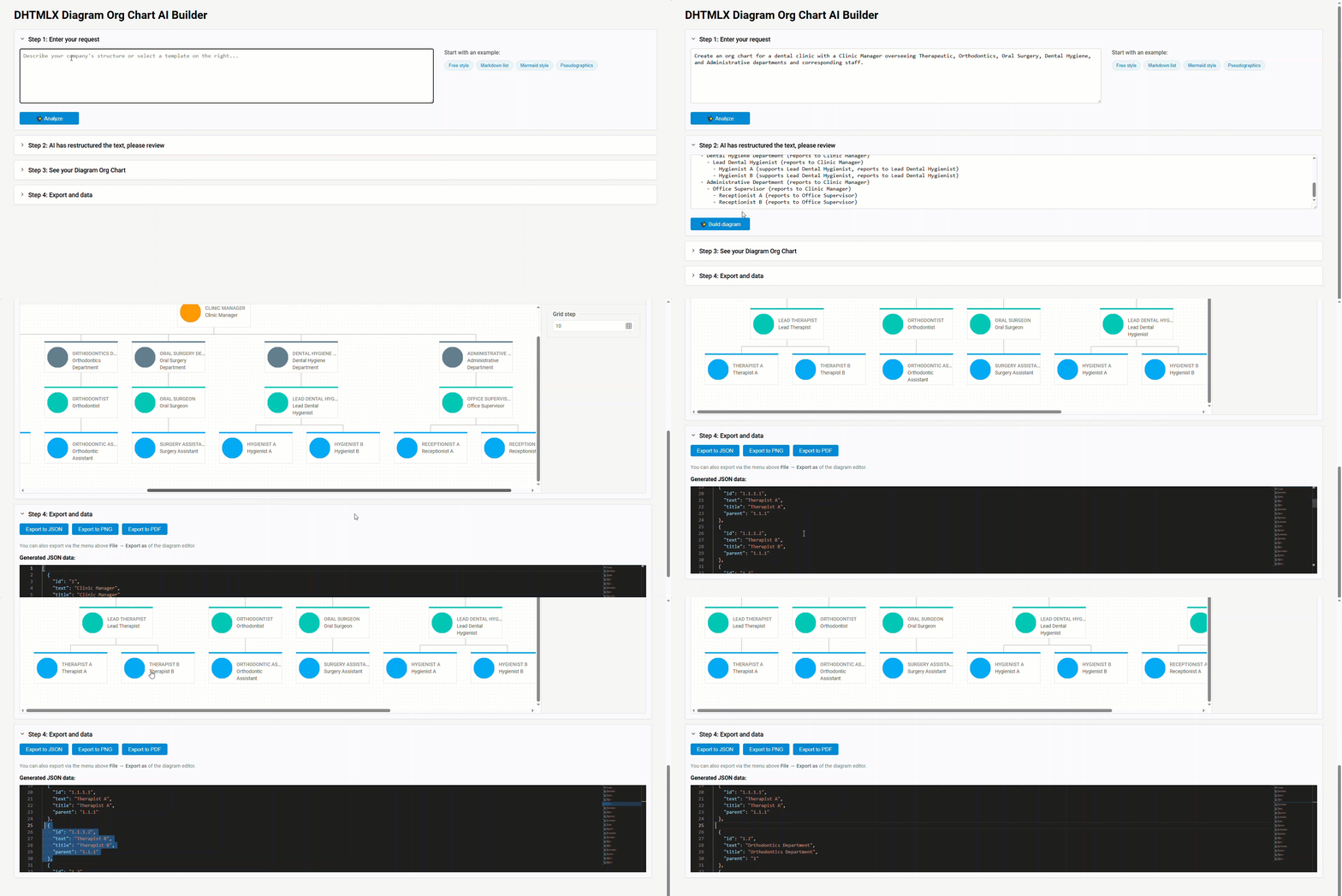
The Org Chart Builder workflow is divided into simple, sequential steps:
- Describe: A user inputs the required organization structure in plain English (or picks one of the ready-made templates for a try-out) and presses the “Analyze” button.
- Analyze: The backend attaches a set of instructions to the prompt and sends everything to the AI for transforming the message into a well-structured hierarchy.
- Review: The updated structure appears in the second section of the Org Chart Builder, so the user can review it, make edits, and click the “Build diagram” button.
- Build: The backend asks the AI to generate the final JSON configuration for the org chart.
- Visualize and Edit: The system uses the AI-generated JSON to render the org chart using the functional DHTMLX Diagram editor. The same JSON data appears in the code editor, where any tweaks sync instantly with the Diagram editor.
- Export: The final diagram can be exported to JSON, PNG, and PDF formats.
Looks like something worth trying in a web project, right? And we are ready to help you out with relevant implementation instructions. The full project codebase is available in the GitHub repository.
Note: make sure that you have installed Node.js for running the backend server and an OpenAI API key (or a compatible AI service).
Step 1: Setting Up the Frontend UI
The Org Chart Builder interface is based on our JavaScript diagramming component and provides a convenient workspace for data visualization, which consists of four collapsible sections. Each section represents one logical step of the workflow, keeping the UI tidy and guiding the user naturally through the process.
There is nothing complicated about creating such an interface. First, you create an HTML layout that will give placeholders for all UI elements of your future AI Org Chart Builder.
The markup for this UI is already available in our demo project (index.html), so here we’ll look at the key elements that make up the layout:
<!-- Step 1: User Input -->
<textarea id="user-input"></textarea>
<button id="analyze-btn">Analyze</button>
<!-- Step 2: AI Review -->
<textarea id="rephrased-text"></textarea>
<button id="confirm-btn">Build diagram</button>
<!-- Step 3: Visualization -->
<div id="diagram-container"></div>
<!-- Step 4: Data & Export -->
<div id="json-editor"></div>
</div>
Now, you can initialize the interactive parts of your AI Org Chart Builder (app.js). Here is the relevant portion of the initialization code:
const diagramEditor = new dhx.DiagramEditor("diagram-container", {
type: "org",
shapeType: "img-card"
});
// initalizes the Monaco JSON editor
const jsonEditor = monacoInstance.editor.create(document.getElementById('json-editor'), {
value: '',
language: 'json',
theme: 'vs-dark',
readOnly: false,
automaticLayout: true
});
As a result, you get the Diagram editor for displaying org charts and the code editor for working with JSON structures of your visualizations.
Step 2: Interfacing with AI – Rephrase, Build, and Sync
Now that the UI’s foundation is set, it is time to connect it to the backend. After that, you will learn how to add an interaction layer (app.js), including the ability to send prompts to the AI, receive AI-processed hierarchy, generate the org chart preview, and keep everything updated across the diagram and code editors.
2.1 Establishing the WebSocket Connection
You should use the Socket.IO library to enable real-time communication between the frontend and the backend. This ensures that when a user submits text, the AI processes it and sends back results instantly:
const socket = io();
This single line enables real-time updates between the frontend and backend, making our diagram responsive to AI-generated changes.
2.2 Handling User Prompts
After the user enters a description and clicks the Analyze button, the prompt is sent to the backend, where it is complemented with guiding instructions. After that, this data is sent to the LLM, which produces a clean, structured hierarchy.
To make it work, you need to add the addEventListener handler. So, when the button is clicked, the following logic is executed:
const text = userInputTextArea.value;
if (!text) {
displayError("Please enter a description.");
return;
}
setButtonLoadingState(true, analyzeButton);
resetUI();
// Sends the initial prompt to the backend for AI rephrasing
socket.emit('rephrase_text', { text }, (response) => {
setButtonLoadingState(false, analyzeButton);
// If AI provides the rephrased version, it will be displayed for review
if (response.status === 'success') {
reviewTextArea.value = response.payload;
reviewSection.open = true;
displayError('');
} else {
displayError("Analysis error: " + response.message);
}
});
});
The user can estimate the rephrased prompt and manually make necessary adjustments.
2.3 Building the Org Chart
Once the user confirms the rephrased prompt by clicking the “Build Diagram” button, it is sent to the LLM to generate structured JSON for the org chart.
Just like in the case above, you add the addEventListener to the button to react to the user’s click and run all the logic that generates the final org chart:
const verifiedText = reviewTextArea.value;
if (!verifiedText) {
displayError("Text for analysis cannot be empty.");
return;
}
setButtonLoadingState(true, confirmButton);
// Verified prompt is sent, and the backend instructs AI to generate the org chart
socket.emit('generate_diagram', { text: verifiedText }, (response) => {
setButtonLoadingState(false, confirmButton);
if (response.status === 'success') {
const data = response.payload;
// Populates the JSON editor
jsonEditor.setValue(JSON.stringify(data, null, 2));
// Renders the org chart in the Diagram Editor
diagramEditor.diagram.data.parse(data);
diagramSection.open = true;
exportSection.open = true;
displayError('');
} else {
displayError("Generation error: " + response.message);
}
});
});
After that, the Diagram editor displays the org chart, while the code editor shows the corresponding JSON structure.
2.4 Syncing Editors
The code editor is fully interactive. Any manual changes in the JSON structure will be reflected in the Diagram editor in real time.
Here is the logic behind this behavior:
clearTimeout(debounceTimer);
debounceTimer = setTimeout(() => {
try{
const jsonData = JSON.parse(jsonEditor.getValue());
diagramEditor.diagram.data.parse(jsonData);
displayError('');
} catch (e) {
// It's okay if the JSON is temporarily invalid while typing
}
}, 500);
});
This ensures full synchronization between the visual org chart and its JSON representation.
2.5 Export Options
Finally, you can enable users to export the org chart using diagram.export.png() and diagram.export.pdf() methods included in the DHTMLX Diagram API.
Now, we can proceed to the most exciting part of our tutorial, namely, how the backend prepares the data for AI, calls the model, and sends its responses back to the browser.
Step 3: Backend Intelligence Layer – Rules, Prompts, Validation, Response Delivery
In previous sections, we touched on the backend’s behavior at a high level. Now, we are transitioning from general concepts to explaining the backend role from a technical standpoint, providing concrete code examples.
Main Backend Responsibilities
Right now, we’ll consider the core backend responsibilities (server.js) and explain how each of them contributes to producing correct org charts:
- Receiving events from frontend (rephrase_text, generate_diagram) via Socket.IO
//event for rephrasing the initial prompt
socket.on('rephrase_text', async (data, callback) => {
//...
});
//event for generating the final org chart structure
socket.on('generate_diagram', async (data, callback) => {
//...
});
Once the backend receives these events, it can apply the necessary rules, prompts, and schema validations, ensuring the AI correctly addresses the user’s request.
- Calling the LLM using structured prompts and a function-calling schema
The callOpenAIForDiagram(userText) function sends the cleaned user text to the AI, using a function-calling schema, and asks the AI to return a properly structured JSON configuration for the org chart.
const messages = [{ role: 'system', content: diagramPrompt }, { role: 'user', content: userText }];
try {
const res = await openai.chat.completions.create({
model: 'gpt-4.1-nano',
messages: messages,
tools: schemaList,
tool_choice: { type: "function", function: { name: "create_org_chart_diagram" } },
});
return res.choices[0].message;
} catch (e) {
throw new Error(`Error from AI service: ${e.message}`);
}
}
The callOpenAIForRephrase(userText) function works similarly, but without Function Calling. It wraps the user text with a system prompt, instructing the AI how to structure the output.
- Validating AI output
Raw AI output can sometimes be unpredictable. The backend performs two validation steps before sending data to the frontend:
1) Ensures each node has a text label, and if not, assigns the default one:
if (!node.text) {
node.text = "Unknown Position";
}
});
2) Fixes the hierarchy by removing connections to non-existent parent nodes using the fixHierarchy(nodes) helper function:
if (!nodes || nodes.length === 0) return [];
const existingIds = new Set(nodes.map(node => node.id));
nodes.forEach(node => {
if (node.parent && !existingIds.has(node.parent)) {
console.warn(`"Orphan" detected! Node "${node.text}" refers to a non-existent parent "${node.parent}". Connection removed.`);
delete node.parent;
}
});
return nodes;
}
These measures help keep the UI safe from inaccurate hierarchies.
- Returning the final JSON configuration to the frontend
After validating the AI response, all that remains for the backend to do is forward the finalized JSON data to the frontend for rendering via the Socket.IO callback:
How the AI is Instructed: System Prompts and Schema
Only one question remains: how exactly does the backend instruct the LLM to rearrange the initial user prompt into a clear hierarchy and generate JSON data for creating the org chart? To do that, the backend uses two system prompts (ai-prompts.js):
- rephrasePrompt – converts free-text descriptions into a well-defined hierarchical list aligning with specific structural rules.
- diagramPrompt – explains to the AI how to turn the user’s request into a corresponding diagram configuration. Importantly, it tells the model to call the create_org_chart_diagram function.
Apart from system prompts, it is necessary to specify the JSON format that DHTMLX Diagram will accept. Here, you will need the function-calling schema (OpenAI’s Function Calling). The schema (schema.js) defines the expected JSON structure:
{
type: "function",
function: {
name: "create_org_chart_diagram",
description: "Creates an organizational chart diagram from an array of nodes.",
parameters: {
type: "object",
properties: {
nodes: {
type: "array",
description: "An array of objects, where each object represents an employee.",
items: {
type: "object",
properties: {
id: {
type: "string",
description: "Unique numerical employee identifier using dot notation for hierarchy (e.g., '1', '1.1', '1.2')."
},
text: {
type: "string",
description: "Employee's position (e.g., 'CEO', 'Manager', 'Developer')."
},
parent: {
type: "string",
description: "ID of the direct manager."
},
//…more properties
This approach ensures that the AI cannot return free text or arbitrary formats, even when users provide vague or unstructured requests. The AI must generate a valid function call that matches the schema, providing the JSON configuration for rendering in the Diagram editor.
That’s all you have to know to integrate DHTMLX Diagram with AI services without any serious problems. But if anything is still unclear about how the DHTMLX AI Org Chart Builder works, check out the project’s GitHub repository to fill the gaps.
Conclusion
This tutorial is another vivid demonstration of what becomes possible when DHTMLX Diagram meets AI. The AI Org Chart Builder turns unstructured ideas into clear visuals in seconds, unlocking opportunities for faster visualizations of complex hierarchical structures and more intuitive user experiences. Stay tuned for new examples of using DHTMLX components with AI.